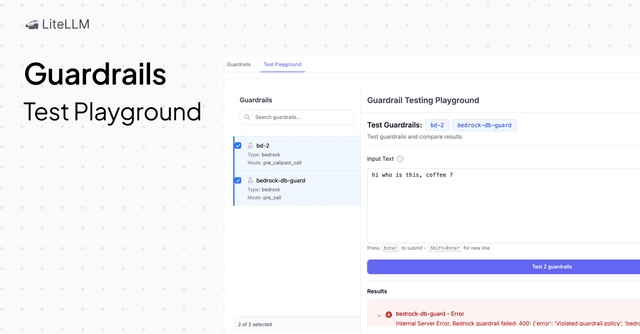
Guardrail Testing Playground
Test and compare multiple guardrails in real-time with an interactive playground interface.
How to Use the Guardrail Testing Playground
The Guardrail Testing Playground allows you to quickly test and compare the behavior of different guardrails with sample inputs.
Steps to Test Guardrails
-
Navigate to the Guardrails Section
- Open the LiteLLM Admin UI
- Go to the Guardrails section
-
Open Test Playground
- Click on the Test Playground tab at the top of the page
-
Select Guardrails to Test
- Check the guardrails you want to compare
- You can select multiple guardrails to see how they each respond to the same input
-
Enter Your Input
- Type or paste your test input in the text area
- This could be a prompt, message, or any text you want to validate against the guardrails
-
Run the Test
- Click the Test guardrails button (or press Enter)
-
View Results
- See the output from each selected guardrail
- Compare how different guardrails handle the same input
- Results will show whether the input passed or was blocked by each guardrail
Use Cases
This is ideal for Security Teams & LiteLLM Admins evaluating guardrail solutions.
This brings the following benefits for LiteLLM users:
-
Compare guardrail responses: test the same prompt across multiple providers (Lakera, Noma AI, Bedrock Guardrails, etc.) simultaneously.
-
Validate configurations: verify your guardrails catch the threats you care about before production deployment.