追蹤程式碼代理程式工作階段
將您個人的 Claude Code 或 Codex 工作階段傳送至 LiteLLM Lens,以檢視其記錄的活動。請在下方選擇您的代理程式。
您需要一個啟用 追蹤 的 LiteLLM 閘道,以及一個 虛擬金鑰。如果您是從零開始,請遵循 Lens 部署指南。Lens worker 僅在調查時需要;您可以在沒有它的情況下檢視追蹤。
Claude Code
Claude Code 不需要 Lens 外掛程式或輔助工具。其內建的 OpenTelemetry 匯出器 會直接將追蹤 span 與助理回覆記錄傳送至 Lens。模型呼叫可繼續透過您的 Claude 訂閱或您既有的 API 提供者;請保持您的 Claude 登入與模型端點不變。
將此提示複製到您的程式碼代理程式中,以便讓它設定這台機器,或依照下方的手動步驟操作。
Set up this machine to send my Claude Code sessions to LiteLLM Lens. First read https://docs.litellm.ai/docs/proxy/lens/coding-agents.md and https://docs.litellm.ai/docs/proxy/lens/deployment.md.
1. Ask me for my LiteLLM gateway URL and an agent name, defaulting to claude-code. Read my virtual key from an existing environment variable or a hidden terminal prompt. Never ask me to paste the key into chat, print it, or commit it.
2. Check that tracing is enabled and the gateway accepts Claude conversation logs at /v1/logs. If it needs an upgrade, explain that before changing my local settings.
3. Explain which session content will be sent to my gateway. Configure Claude's built-in OTLP trace and log exporters and the content flags in the guide. Merge them into the env object in my user-level ~/.claude/settings.json, preserving other settings and resource attributes. Keep credentials in private user configuration. Use lens.session.capture=true and my chosen gen_ai.agent.name. Do not install a plugin or helper, change my Claude subscription/API login or model endpoint, or enable optional raw API-body export.
4. Tell me to restart Claude Code, then complete a small prompt that uses a tool. Verify the new trace under my chosen agent name in Lens > Traces > Conversation contains the prompt, tool activity, and assistant reply. These events belong in Lens, not the normal request Logs screen. Report any missing content or export error instead of claiming setup succeeded.
5. Show me the configuration changes with credentials hidden, explain how to pause telemetry, and point out the capture limits described in the guide.
此設定需要接受 Claude 對話記錄、位於 /v1/logs 的閘道版本。較舊的閘道只接受追蹤 span,無法重建從未被記錄的回覆。請使用支援助理回覆記錄的最新 Claude Code 版本。
在您執行 claude 的終端機中,將閘道 URL 與金鑰替換後,然後執行:
export CLAUDE_CODE_ENABLE_TELEMETRY=1
export CLAUDE_CODE_ENHANCED_TELEMETRY_BETA=1
export OTEL_TRACES_EXPORTER=otlp
export OTEL_EXPORTER_OTLP_TRACES_ENDPOINT="https://<your-litellm-proxy>/v1/traces"
export OTEL_EXPORTER_OTLP_TRACES_PROTOCOL="http/protobuf"
export OTEL_EXPORTER_OTLP_TRACES_HEADERS="Authorization=Bearer <your-litellm-key>"
export OTEL_METRICS_EXPORTER=none
export OTEL_LOGS_EXPORTER=otlp
export OTEL_EXPORTER_OTLP_LOGS_ENDPOINT="https://<your-litellm-proxy>/v1/logs"
export OTEL_EXPORTER_OTLP_LOGS_PROTOCOL="http/protobuf"
export OTEL_EXPORTER_OTLP_LOGS_HEADERS="Authorization=Bearer <your-litellm-key>"
export OTEL_RESOURCE_ATTRIBUTES="lens.session.capture=true,gen_ai.agent.name=claude-code"

export OTEL_LOG_USER_PROMPTS=1
export OTEL_LOG_ASSISTANT_RESPONSES=1
export OTEL_LOG_TOOL_DETAILS=1
export OTEL_LOG_TOOL_CONTENT=1

claude
內容標記包含提示、助理回覆、工具引數,以及支援的工具輸出,這些可能包含原始碼或秘密。僅在您打算儲存該內容的閘道上啟用它們。
完成一個使用工具的提示,然後開啟 Lens > Traces,選取 claude-code,並將 trace 切換為 Conversation。您應該會看到您的提示、註解、工具活動,以及最終回覆。子代理程式會顯示在可展開的分支中。背景標題產生與建議提示不會納入對話中。
lens.session.capture=true 會將具有相同 Claude 工作階段 ID 的回合分組為一個 trace,包括恢復的工作階段與背景代理程式回覆。原始 trace ID 會保留在 span 屬性中。若省略此資源屬性,則可保留 Claude 每次互動各自獨立的 trace。如果您已設定 OTEL_RESOURCE_ATTRIBUTES,請附加這些值,而不是取代您現有的屬性。
助理回覆使用與追蹤 span 不同的遙測串流。請保持兩個匯出器都啟用。無需白名單中的詳細追蹤端點。請參閱 Claude Code 的 監控參考,了解 beta 匯出器的涵蓋範圍與內容限制。
/v1/logs 端點會接收供 Lens 使用的 OpenTelemetry 事件。這些會成為工作階段 trace 的一部分,且不會在一般 LiteLLM Logs 畫面中建立項目,也不會產生額外的支出記錄。
Claude 穩定版的工具輸出事件會省略失敗的執行與部分工具種類。若要在下一次模型請求中補足這些缺口,您可以選擇啟用原生 API 主體匯出:
export OTEL_LOG_RAW_API_BODIES=1
export CLAUDE_CODE_OTEL_CONTENT_MAX_LENGTH=1048576
這會將完整的 API 主體(包括對話歷史與來源內容)傳送至閘道。Lens 會擷取 Conversation 的工具結果,並捨棄 body 屬性。較大的限制可避免 Claude 預設的 60 KB 截斷,適用於一般短工作階段,但長工作階段仍可能超出。當 body 不完整時,Lens 會發出警告。從未傳送到另一個模型請求的結果仍無法取得。file:<dir> 模式只會在您的機器上寫入 body,無法將其提供給遠端閘道。
下方的對話包含一個刻意失敗的指令。搭配可選的 body 匯出功能,Lens 會顯示其 stdout 以及失敗資訊與助理的最終回覆。
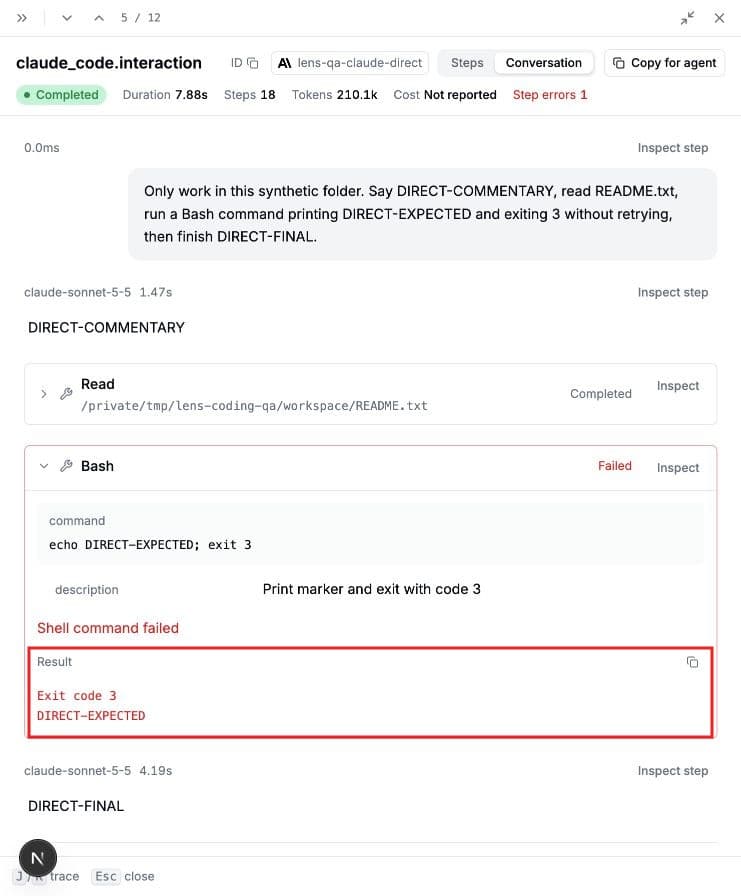
若要進行持久性設定,請將這些變數新增至您使用者層級 ~/.claude/settings.json 中的 env 物件,並保留既有設定。儲存庫層級設定無法啟用遙測或選擇其目的地。受管理的設定可能會覆寫您的本機目的地。
Codex
請使用 BerriAI Codex GitHub 整合。這個公開預覽版本支援本機 Codex 桌面版與 CLI 工作階段。自動設定目前支援 macOS,且需要 Python 3.11 或更新版本。
將此提示複製到您的程式碼代理程式中,以便讓它安裝並設定整合,或依照下方的手動步驟操作。
Set up LiteLLM Lens tracing for my local Codex desktop or CLI sessions. First read https://docs.litellm.ai/docs/proxy/lens/coding-agents.md and https://github.com/BerriAI/litellm-lens-codex-integration/blob/main/README.md.
1. Check this machine's operating system and Python version against the integration's current prerequisites. If automatic setup is unsupported, explain the limitation rather than inventing installation steps.
2. Ask me for my LiteLLM gateway URL and an agent name. Use the documented Terminal setup so I can enter my virtual key at its hidden prompt and confirm recording. Never ask me to paste the key into chat, print it, or commit it.
3. Install or update the official BerriAI integration using the README's From Terminal instructions. Reuse an existing installation where possible, and preserve my Codex authentication, model configuration, and unrelated hooks. Explain what will be recorded; only newly captured activity should be exported.
4. Tell me to start a new Codex chat and complete a small prompt that uses a tool. Verify its trace appears under my chosen agent name in Lens > Traces > Conversation, with the prompt, tool outcome, and assistant reply. Check the integration's status and pending uploads if it does not appear; installation alone is not proof that capture works.
5. Show me what changed with credentials hidden, explain how to pause recording with lens-setup, and summarize the integration's capture limits.
- 請遵循安裝指南中的 從終端機(建議)。相同的安裝程式適用於桌面版與 CLI。
- 在 Terminal 中輸入您的 gateway URL、LiteLLM virtual key 與 agent name。確認後即可開始記錄。請在隱藏提示下輸入金鑰,而不是在聊天中。
- 開始一個新的 Codex 聊天並完成一個回合。 開啟 Lens > Traces,並找到您選擇的代理程式名稱。
每個聊天都有一個 trace,並會在完成或中斷的回合後更新。重新開啟聊天會延續其 trace。只有設定完成後的活動會被記錄。
外掛程式會讀取新記錄回合中可見的轉錄項目,包括註解、重複訊息、工具結果、模型變更與子代理程式。當缺少完成回呼時,可還原已完成的轉錄回合。請參閱 涵蓋範圍與隱私詳細資訊 了解其限制。若要暫停記錄,請詢問 Codex:Use lens-setup to pause recording.
涵蓋範圍與疑難排解
Lens 會顯示程式碼代理程式匯出的內容。它無法從較舊的 traces 中還原缺失的內容。Claude 的原生遙測不會匯出精確的終端機記錄:圖片、隱藏推理、本機選單、權限對話框與部分工作階段事件可能會缺失。Claude 也會限制匯出內容長度;長的工具結果或回覆可能在 Lens 接收前就被截斷。Codex 會以明確的省略標記取代媒體,並識別不受支援的轉錄項目。這些限制使得無法保證每個工作階段或未來代理程式版本都能呈現完全相同的結果。
如果 Claude 顯示工具但沒有回覆,請檢查 OTEL_LOGS_EXPORTER、OTEL_LOG_ASSISTANT_RESPONSES 與記錄端點。404 對 /v1/logs 來說,表示閘道需要更新。請允許匯出器在回合後完成 flush。請勿啟用原始 API 主體匯出來補償缺少的回覆記錄。
若要變更 Claude 代理程式名稱,請在 OTEL_RESOURCE_ATTRIBUTES 中設定 gen_ai.agent.name。例如,gen_ai.agent.name=my-claude-code,developer=alice,lens.session.capture=true。請在 trace 篩選器以及任何調查的代理程式篩選器中使用完全相同的名稱。僅限於 claude-code 的調查不會自動取樣 my-claude-code。
對於大型 traces,請在 Conversation 中使用 Load next steps 來載入較後面的活動。如果某個步驟載入失敗,請先重試,再載入下一頁。子代理程式分支會保留各自的訊息與工具結果,因此並行代理程式不會看起來像同一位發言者。