新增 LLM 憑證
您可以在 UI 上新增 LLM 提供者憑證。新增憑證後,您在新增新模型時就能重複使用它們
新增憑證 + 模型
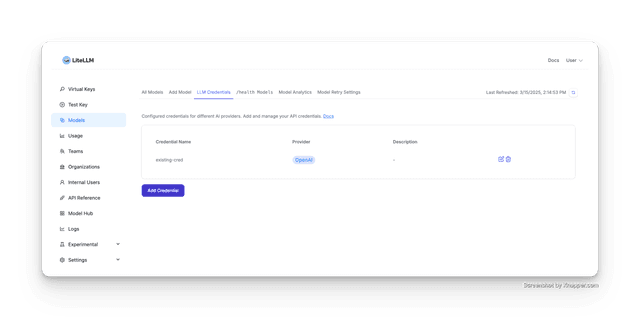
1. 前往 LLM 憑證頁面
前往 Models -> LLM Credentials -> Add Credential
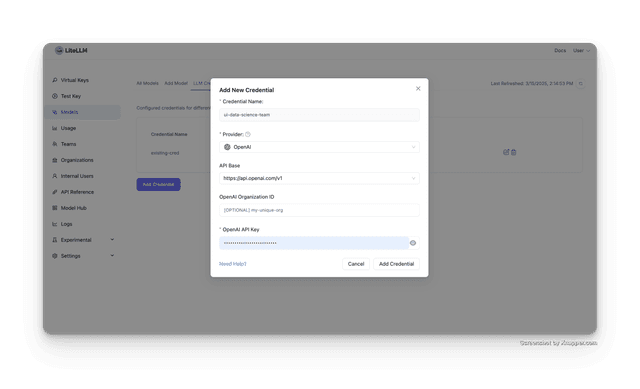
2. 新增憑證
選取您的 LLM 提供者,輸入您的 API 金鑰,然後點擊 "Add Credential"
注意:憑證是依提供者而定,如果您選擇 Vertex AI,則您會看到 Vertex Project、Vertex Location 和 Vertex Credentials 欄位
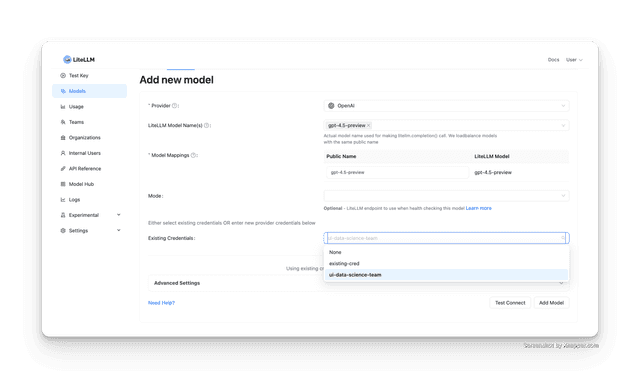
3. 新增模型時使用憑證
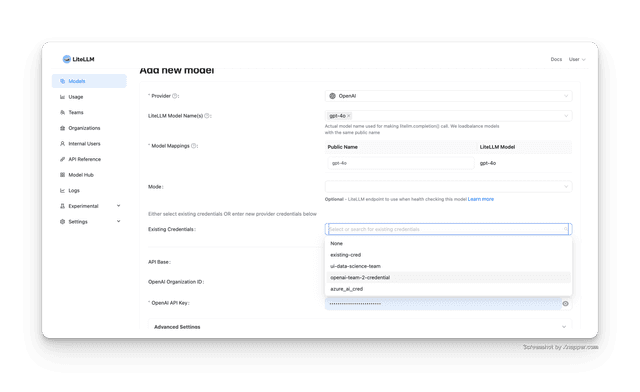
前往 Add Model -> Existing Credentials -> 在下拉選單中選取您的憑證
從現有模型建立憑證
如果您已經建立了模型,並且想要將模型憑證儲存供日後使用,請使用此功能
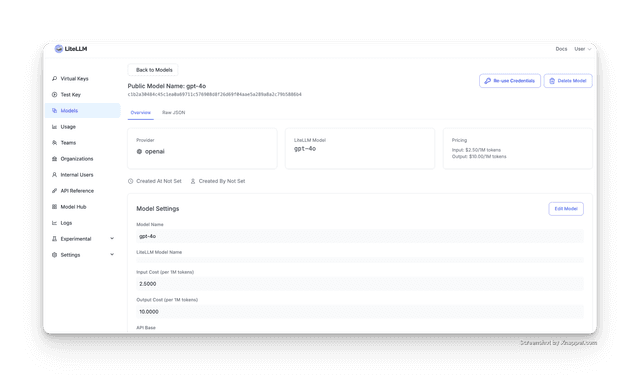
1. 選取要建立憑證來源的模型
前往 Models -> 選取您的模型 -> Credential -> Create Credential
2. 新增模型時使用新憑證
前往 Add Model -> Existing Credentials -> 在下拉選單中選取您的憑證
使用量追蹤
附加到可重複使用憑證的模型會自動在 Usage 頁面中追蹤。每個請求都會被加上 Credential: <name> 標籤,並顯示在 Tag 檢視中,因此您可以依憑證篩選支出與用量,而無需額外設定。詳情請參閱 Credential Usage Tracking。
常見問題
憑證如何儲存?
DB 中的憑證會使用 LITELLM_SALT_KEY 進行加密/解密(如果已設定)。如果沒有設定,則會使用 LITELLM_MASTER_KEY 進行加密。這些金鑰應保持機密,不要與他人分享。