使用 Claude Code Max 訂閱
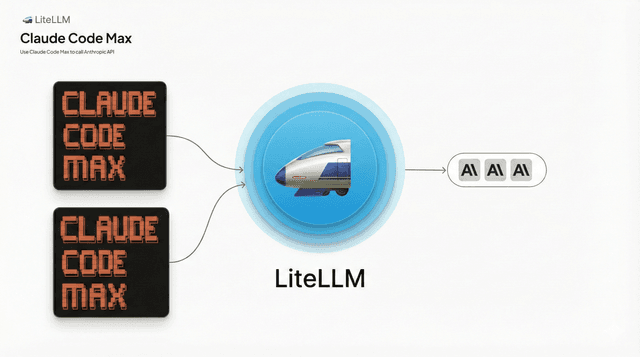
透過 LiteLLM AI Gateway 路由 Claude Code Max 訂閱流量。
為什麼選擇 Claude Code Max,而不是直接使用 API?
- 更低成本 — 對 Claude Code 重度使用者而言,Claude Code Max 訂閱比按 token 計價的 API 更便宜
為什麼要透過 LiteLLM 路由?
- 成本歸因 — 追蹤每位使用者、團隊或金鑰的支出
- 預算與速率限制 — 設定支出上限與請求限制
- 防護欄 — 將內容過濾與安全控制套用到所有請求
快速開始影片
觀看使用 LiteLLM Gateway 設定 Claude Code 的端到端示範:
必要條件
- Claude Code 已安裝
- Claude Max 訂閱
- LiteLLM Gateway 正在執行
步驟 1:設定 LiteLLM Proxy
建立一個 config.yaml,並設定關鍵的 forward_client_headers_to_llm_api: true:
model_list:
  - model_name: anthropic-claude
    litellm_params:
      model: anthropic/claude-sonnet-5

  - model_name: claude-sonnet-5
    litellm_params:
      model: anthropic/claude-sonnet-5

  - model_name: claude-opus-5
    litellm_params:
      model: anthropic/claude-opus-5

general_settings:
  master_key: os.environ/LITELLM_MASTER_KEY
  forward_client_headers_to_llm_api: true  # Required: forwards OAuth token to Anthropic
forward_client_headers_to_llm_api?此設定會將使用者的 OAuth token(位於 Authorization 標頭中)透過 LiteLLM 轉送至 Anthropic API,讓 LiteLLM 負責追蹤與控管,同時啟用使用者以其 Max 訂閱進行個別驗證。
步驟 2:啟動 LiteLLM Proxy
litellm --config /path/to/config.yaml

# RUNNING on http://0.0.0.0:4000
逐步操作
第 1 部分:在 LiteLLM 中建立虛擬金鑰
前往 LiteLLM 儀表板,為 Claude Code 使用建立新的虛擬金鑰。
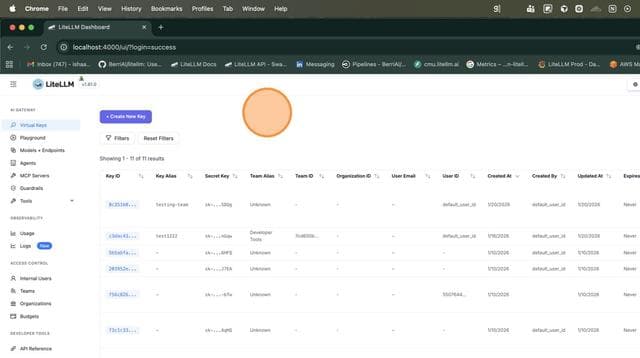
1.1 開啟虛擬金鑰頁面
前往 LiteLLM 儀表板中的 Virtual Keys 區段。
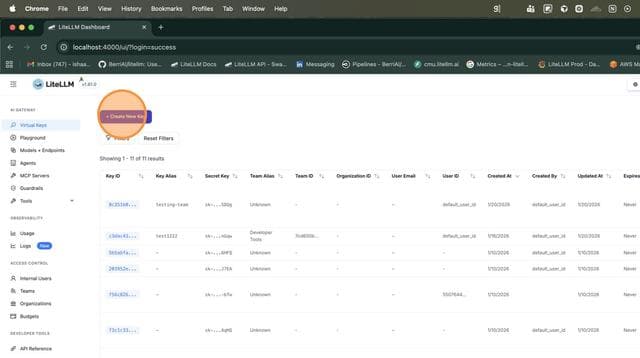
1.2 點擊 "Create New Key"
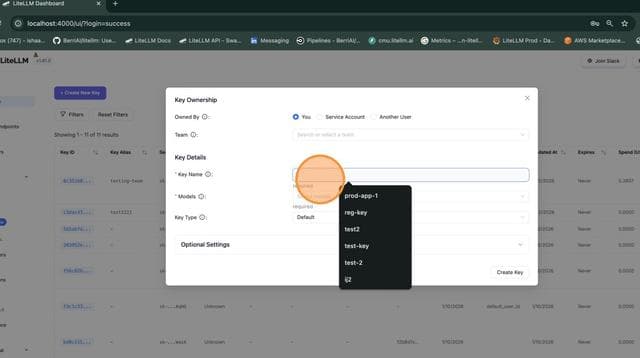
1.3 設定金鑰詳細資訊
輸入金鑰名稱(例如 claude-code-test),並選取您要允許存取的模型。
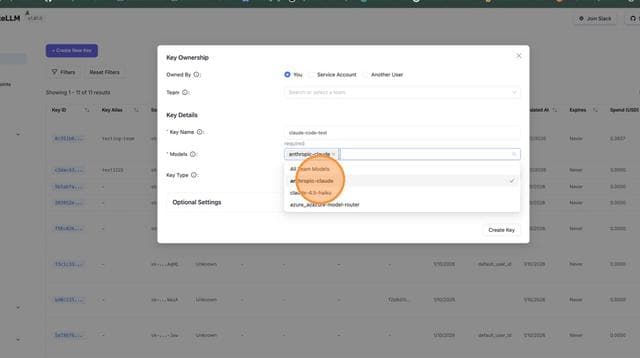
1.4 選擇模型
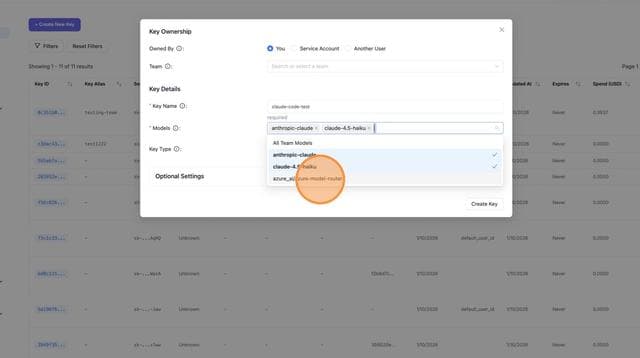
選擇應可透過此金鑰存取的 Anthropic 模型(例如 anthropic-claude、claude-4.5-haiku)。
1.5 確認模型選擇
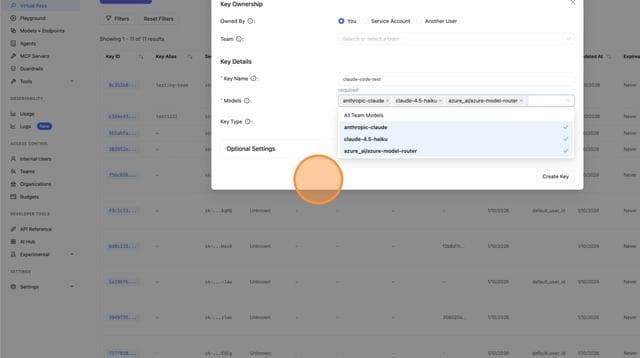
1.6 建立金鑰
點擊「Create Key」以產生您的虛擬金鑰。複製產生的金鑰值(例如 sk-otsclFlEblQ-6D60ua2IZg)。
第 2 部分:登入 Claude Code Max 方案(用戶端)
設定 Claude Code 環境變數,並以您的 Max 訂閱進行驗證。
2.1 設定環境變數
設定 Claude Code 使用 LiteLLM Gateway 與您的虛擬金鑰:
export ANTHROPIC_BASE_URL=http://localhost:4000
export ANTHROPIC_MODEL="anthropic-claude"
export ANTHROPIC_CUSTOM_HEADERS="x-litellm-api-key: Bearer sk-otsclFlEblQ-6D60ua2IZg"

環境變數說明
| 變數 | 說明 |
|---|---|
ANTHROPIC_BASE_URL | 將 Claude Code 指向您的 LiteLLM Gateway 端點 |
ANTHROPIC_MODEL | 在您的 LiteLLM config.yaml 中設定的模型名稱 |
ANTHROPIC_CUSTOM_HEADERS | LiteLLM 驗證用的 x-litellm-api-key 標頭 |
2.2 啟動 Claude Code
啟動 Claude Code:
claude
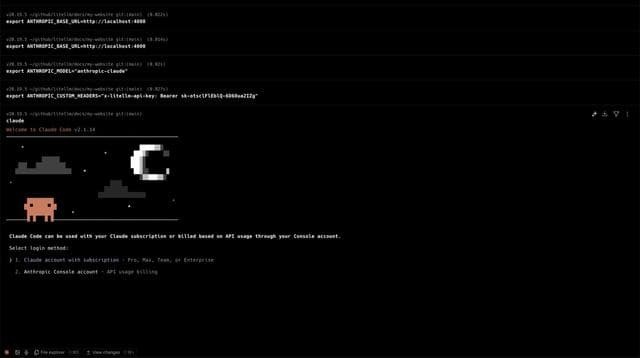
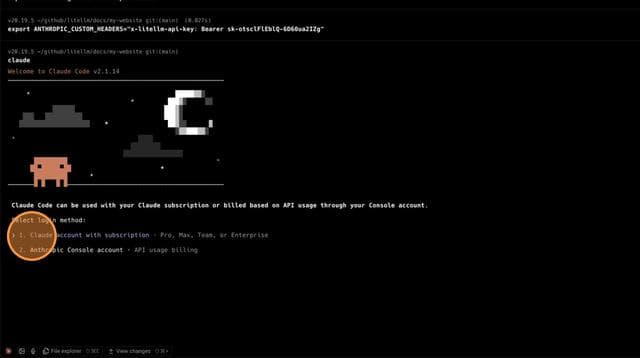
2.3 選擇登入方式
選擇「具備訂閱的 Claude 帳號」(Pro、Max、Team 或 Enterprise)。
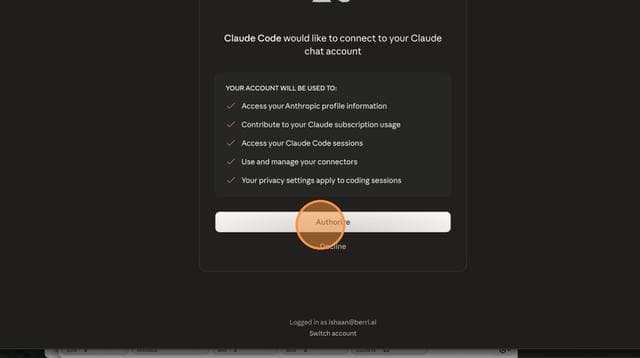
2.4 在瀏覽器中授權
Claude Code 會開啟您的瀏覽器進行驗證。點擊「Authorize」以連結您的 Claude Max 帳號。
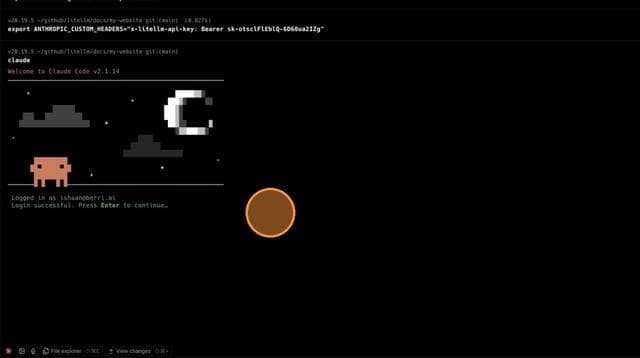
2.5 登入成功
授權後,您會看到登入成功確認。
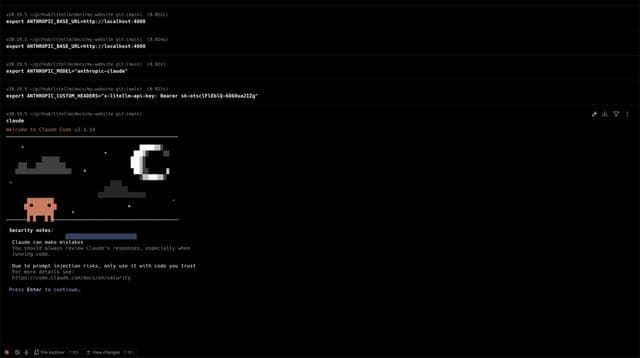
2.6 完成設定
按下 Enter 即可略過安全性說明並完成設定。
第 3 部分:使用 Claude Code 搭配 LiteLLM
現在您可以正常使用 Claude Code,所有請求都會在 LiteLLM 中被追蹤。
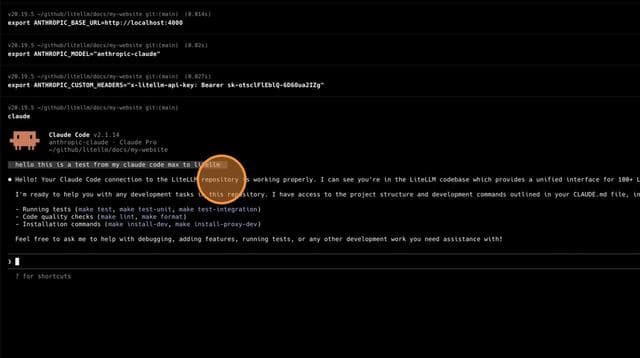
3.1 在 Claude Code 中發出請求
開始使用 Claude Code - 請求將會透過 LiteLLM Gateway 傳送。
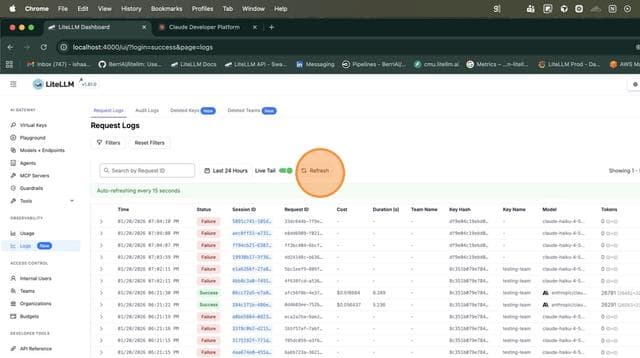
3.2 在 LiteLLM 儀表板中查看記錄
前往 LiteLLM 儀表板中的 Logs 頁面,查看所有 Claude Code 請求。
3.3 查看請求詳細資訊
點擊某個請求以查看詳細資訊,包括 token、成本、持續時間,以及使用的模型。
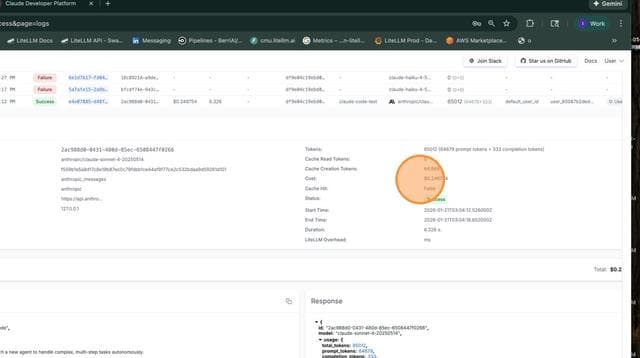
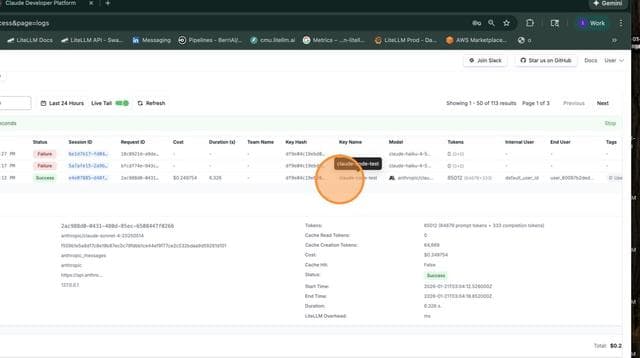
記錄顯示:
- 金鑰名稱:
claude-code-test(您建立的虛擬金鑰) - 模型:
anthropic/claude-sonnet-4-20250514 - Token: 65012(64679 prompt + 333 completion)
- 成本: $0.249754
- 狀態: 成功
運作方式
LiteLLM Gateway 處理兩種類型的驗證:
x-litellm-api-key:使用 LiteLLM 驗證請求(用量追蹤、預算、速率限制)- OAuth Token(透過
Authorization標頭):轉送至 Anthropic API 以進行 Claude Max 驗證
標頭流程
| 標頭 | 用途 | 由誰處理 |
|---|---|---|
x-litellm-api-key | LiteLLM Gateway 驗證、預算追蹤、速率限制 | LiteLLM |
Authorization: Bearer {oauth_token} | Claude Max 訂閱驗證 | Anthropic API |
完整請求流程範例
以下是在 Claude Code 透過 LiteLLM 發出呼叫時的典型請求:
curl -X POST "http://localhost:4000/v1/messages" \
  -H "x-litellm-api-key: Bearer sk-otsclFlEblQ-6D60ua2IZg" \
  -H "Authorization: Bearer oauth_token_from_max_plan" \
  -H "Content-Type: application/json" \
  -d '{
    "model": "anthropic-claude",
    "max_tokens": 1024,
    "messages": [{"role": "user", "content": "Hello, Claude!"}]
  }'
LiteLLM 接著會:
- 驗證用於閘道存取的
x-litellm-api-key - 記錄請求以供用量追蹤
- 以 OAuth
Authorization標頭將請求轉送至 Anthropic(因為forward_client_headers_to_llm_api: true)
進階設定
按模型轉送標頭
若要更細緻地控制,您可以只為特定模型啟用標頭轉送:
model_list:
  - model_name: anthropic-claude
    litellm_params:
      model: anthropic/claude-sonnet-5

  - model_name: claude-opus-5
    litellm_params:
      model: anthropic/claude-opus-5

general_settings:
  master_key: os.environ/LITELLM_MASTER_KEY

litellm_settings:
  model_group_settings:
    forward_client_headers_to_llm_api:
      - anthropic-claude
      - claude-opus-5
預算控制
在使用 Max 訂閱時設定每位使用者的預算:
model_list:
  - model_name: anthropic-claude
    litellm_params:
      model: anthropic/claude-sonnet-5

general_settings:
  master_key: os.environ/LITELLM_MASTER_KEY
  forward_client_headers_to_llm_api: true
  database_url: "postgresql://..."
接著建立具有預算的虛擬金鑰:
curl -X POST "http://localhost:4000/key/generate" \
  -H "Authorization: Bearer $LITELLM_MASTER_KEY" \
  -H "Content-Type: application/json" \
  -d '{
    "key_alias": "developer-1",
    "max_budget": 100.00,
    "budget_duration": "monthly"
  }'
疑難排解
OAuth 權杖未被轉送
症狀:來自 Anthropic API 的驗證錯誤
解決方案:請確保在您的設定中已設定 forward_client_headers_to_llm_api: true:
general_settings:
  forward_client_headers_to_llm_api: true
LiteLLM 驗證失敗
症狀:來自 LiteLLM Gateway 的 401 錯誤
解決方案:請確認在 x-litellm-api-key 中已正確設定 ANTHROPIC_CUSTOM_HEADERS 標頭:
curl -X GET "http://localhost:4000/key/info" \
  -H "Authorization: Bearer sk-otsclFlEblQ-6D60ua2IZg"
找不到模型
症狀:找不到模型錯誤
解決方案:請確保 ANTHROPIC_MODEL 與您設定中的模型名稱相符:
curl "http://localhost:4000/v1/models" \
  -H "Authorization: Bearer sk-otsclFlEblQ-6D60ua2IZg"
相關文件
- 轉發用戶端標頭 - 詳細的標頭轉發設定
- Claude Code 快速入門 - Claude Code + LiteLLM 基本設定
- 虛擬金鑰 - 建立與管理 API 金鑰
- 預算與速率限制 - 設定用量控制