Claude Desktop(Cowork)整合
第三方推論上的 Claude Desktop 會將 Cowork、Chat 和 Code 工作階段中的每一個模型呼叫送往您指定的閘道,而 LiteLLM 就是這個閘道:統一記錄、依使用者與團隊劃分的預算、模型存取控制,以及其後的任何 Claude 部署(Anthropic、Bedrock、Vertex AI、Foundry),而無需再次碰觸用戶端。本頁說明裝置向 LiteLLM 驗證的兩種方式、透過您的身分提供者進行單一登入(無需發放或輪替任何項目,支出會歸屬到個人),以及靜態虛擬金鑰(最快的試用方式);接著說明會出現在模型選擇器中的內容、相同身分如何透過 LiteLLM MCP gateway 存取 MCP 伺服器、如何將設定推送到整個叢集,以及出現問題時要檢查什麼。
它如何協同運作
Claude Desktop 對待 LiteLLM 的方式與對待 Anthropic 自家 API 的方式相同:啟動時會使用 GET /v1/models 探索模型,並將含有串流與工具使用的聊天流量送往 POST /v1/messages,每個請求都帶著 Authorization: Bearer <credential>。認證憑證要不是 LiteLLM 虛擬金鑰,就是在單一登入時由您的身分提供者發給已登入使用者的 ID token;LiteLLM 會在每次請求時以 JWT auth 驗證它,並將其對應到 LiteLLM 使用者與團隊。
| 設定 | 值 |
|---|---|
| Gateway base URL | https://your-litellm-proxy.com,不含 /v1 後綴 |
| 認證憑證,單一登入 | 使用者的 ID token,由 LiteLLM JWT auth 驗證 |
| 認證憑證,靜態金鑰 | LiteLLM 虛擬金鑰 |
| 使用的端點 | 用於 MCP 伺服器的 GET /v1/models、POST /v1/messages 和 POST /mcp |
| LiteLLM 版本 | v1.98.0 或更新版本用於模型探索,v1.89.0 或更新版本用於 issuers JWT 設定 |
| Claude Desktop 版本 | 1.6889.0 或更新版本用於單一登入(2.7032.0 或更新版本用於 external-idp 金鑰名稱),1.10628.0 或更新版本用於 claude.ai 匯入 |
選項 A:透過您的身分提供者進行單一登入
使用單一登入(inferenceCredentialKind: interactive,Claude Desktop 2.7032.0 及更新版本也接受其作為 external-idp),Claude Desktop 會在系統瀏覽器中對您的身分提供者執行 OpenID Connect 登入(使用 PKCE 的授權代碼流程),將 refresh token 保存在作業系統安全儲存區,並將 ID token 作為 bearer 憑證傳送給 LiteLLM。LiteLLM 會根據提供者的簽署金鑰、issuer 與 audience 檢查簽章,然後將 token 的 claims 對應到 LiteLLM 使用者,並透過 groups claim 對應到 LiteLLM 團隊。沒有人需要佈建或輪替金鑰,從身分提供者移除的使用者在 token 到期時會失去存取權,MFA 與條件式存取也會套用,而使用者唯一會看到的就是 Sign in to your organization 按鈕。此路徑需要 LiteLLM 後方有資料庫,因為使用者與支出都會寫入其中。
1. 在您的身分提供者中註冊 Claude Desktop
Claude Desktop 是原生應用程式,因此它會以公用用戶端(PKCE、無 client secret)搭配迴送 redirect URI 進行註冊。
- Microsoft Entra ID
- Okta
- AWS Cognito
在 Entra 管理中心中,為您目錄中的帳戶建立僅供該目錄使用的應用程式註冊,然後在 Authentication 下加入一個 Mobile and desktop applications 平台,並設定自訂 redirect URI http://127.0.0.1/callback。請使用 127.0.0.1,而不是 localhost,保留 /callback 路徑,並且特別將它加入該平台:這是 Entra 唯一允許使用任何本機埠的方式,而應用程式需要這個能力,因為它會在登入時選擇一個可用埠。無需 client secret 或 API 權限。複製 Application (client) ID 與 Directory (tenant) ID。
issuer 是 https://login.microsoftonline.com/YOUR_TENANT_ID/v2.0,簽署金鑰位於 https://login.microsoftonline.com/YOUR_TENANT_ID/discovery/v2.0/keys。穩定的使用者 id claim 是 oid。若要透過群組將使用者對應到 LiteLLM 團隊,請在 Token configuration 下為 ID token 加入 groups claim;它會攜帶群組物件 id。
在 Okta 管理主控台中建立一個類型為 OIDC, Native Application 的應用程式整合,並啟用 Authorization Code 與 Refresh Token 授權類型。Okta 會精確比對 redirect URI(包含埠號),因此請選擇固定埠,例如 53180,註冊 http://127.0.0.1:53180/callback,並在下方的 Claude Desktop 中設定相同埠號。指派應該具有存取權的使用者或群組。
issuer 是 https://YOUR_ORG.okta.com,也就是一般的 org URL,而不是以 /.well-known/openid-configuration 結尾的 metadata URI(自訂授權伺服器的 issuer 是 https://YOUR_ORG.okta.com/oauth2/AUTH_SERVER_ID),簽署金鑰位於 https://YOUR_ORG.okta.com/oauth2/v1/keys。穩定的使用者 id claim 是 sub。請為 ID token 加入 groups claim 以進行團隊對應。
在 Cognito 主控台中開啟您的使用者池,並建立一個 application type 為 Mobile app 的 app client。這是主控台的公用用戶端類型(PKCE、無 client secret),也是桌面應用程式所需要的:Traditional web application 類型會產生 client secret,接著 Cognito 會在每次 token 請求時要求該 secret,但 Claude Desktop 作為公用用戶端從不傳送 secret,而且 secret 在建立後無法移除,因此使用 web-type client 的登入會在 token exchange 時永遠失敗。Cognito 會精確比對 redirect URI(包含埠號),因此請選擇固定埠,例如 53180,將 http://127.0.0.1:53180/callback 輸入為 return URL(Cognito 允許 127.0.0.1 使用純粹的 http),並在下方的 Claude Desktop 中設定相同埠號。
建立後,開啟該 app client 的 Login pages 設定,並啟用 OpenID Connect scopes openid、profile 與 email。使用者池也需要在 Branding > Domain 下設定網域,因為 Cognito 的 authorize 與 token 端點就位於該網域;issuer URL 的 discovery 文件會自動指向它們。
issuer 是 https://cognito-idp.REGION.amazonaws.com/USER_POOL_ID,簽署金鑰位於 https://cognito-idp.REGION.amazonaws.com/USER_POOL_ID/.well-known/jwks.json。穩定的使用者 id claim 是 sub,而群組成員資格會以 cognito:groups claim 傳送給使用者池群組中的使用者。
2. 設定 LiteLLM 以驗證 token
使用一個 issuers 項目向 LiteLLM 描述身分提供者(LiteLLM v1.89.0 或更新版本)。每個項目會將一個 iss 值繫結到其簽署金鑰與 audience,並攜帶該提供者的 claim 名稱,因此可以讓多個提供者並存。audience 就是您註冊的 client id:ID token 的 aud 是該 token 發放給哪個 client,而檢查它能防止為同一租用戶中的其他應用程式鑄造的 token 進入您的閘道。
- Microsoft Entra ID
- Okta
- AWS Cognito
general_settings:
  enable_jwt_auth: true
  litellm_jwtauth:
    user_id_upsert: true
    issuers:
      - issuer: https://login.microsoftonline.com/YOUR_TENANT_ID/v2.0
        jwks_url: https://login.microsoftonline.com/YOUR_TENANT_ID/discovery/v2.0/keys
        audience: YOUR_CLIENT_ID
        user_id_jwt_field: oid
        user_email_jwt_field: email
        team_ids_jwt_field: groups

model_list:
  - model_name: claude-sonnet-5
    litellm_params:
      model: anthropic/claude-sonnet-5
      api_key: os.environ/ANTHROPIC_API_KEY
  - model_name: claude-opus-5
    litellm_params:
      model: anthropic/claude-opus-5
      api_key: os.environ/ANTHROPIC_API_KEY
  - model_name: claude-haiku-4-5
    litellm_params:
      model: anthropic/claude-haiku-4-5
      api_key: os.environ/ANTHROPIC_API_KEY
general_settings:
  enable_jwt_auth: true
  litellm_jwtauth:
    user_id_upsert: true
    issuers:
      - issuer: https://YOUR_ORG.okta.com
        jwks_url: https://YOUR_ORG.okta.com/oauth2/v1/keys
        audience: YOUR_CLIENT_ID
        user_id_jwt_field: sub
        user_email_jwt_field: email
        team_ids_jwt_field: groups

model_list:
  - model_name: claude-sonnet-5
    litellm_params:
      model: anthropic/claude-sonnet-5
      api_key: os.environ/ANTHROPIC_API_KEY
  - model_name: claude-opus-5
    litellm_params:
      model: anthropic/claude-opus-5
      api_key: os.environ/ANTHROPIC_API_KEY
  - model_name: claude-haiku-4-5
    litellm_params:
      model: anthropic/claude-haiku-4-5
      api_key: os.environ/ANTHROPIC_API_KEY
general_settings:
  enable_jwt_auth: true
  litellm_jwtauth:
    user_id_upsert: true
    issuers:
      - issuer: https://cognito-idp.REGION.amazonaws.com/USER_POOL_ID
        jwks_url: https://cognito-idp.REGION.amazonaws.com/USER_POOL_ID/.well-known/jwks.json
        audience: YOUR_CLIENT_ID
        user_id_jwt_field: sub
        user_email_jwt_field: email
        team_ids_jwt_field: cognito:groups

model_list:
  - model_name: claude-sonnet-5
    litellm_params:
      model: anthropic/claude-sonnet-5
      api_key: os.environ/ANTHROPIC_API_KEY
  - model_name: claude-opus-5
    litellm_params:
      model: anthropic/claude-opus-5
      api_key: os.environ/ANTHROPIC_API_KEY
  - model_name: claude-haiku-4-5
    litellm_params:
      model: anthropic/claude-haiku-4-5
      api_key: os.environ/ANTHROPIC_API_KEY
這會驗證 ID token,也就是預設的 bearer。如果您在 Claude Desktop 中改用設定 bearerTokenType: access_token,請將 audience: YOUR_CLIENT_ID 改為 disable_audience_validation: true,因為 Cognito access token 帶有 client_id claim,但沒有 aud claim;LiteLLM 會拒絕在同一個項目上同時設定這兩個金鑰的設定。
jwks_url 是選用的:如果未提供,LiteLLM 會從 jwks_uri 讀取 {issuer}/.well-known/openid-configuration。無論哪種方式,LiteLLM 都會透過網路向身分提供者擷取簽署金鑰,因此代理伺服器需要從其執行位置對外發送 HTTPS;在受嚴格限制的 VPC 中,請允許該外連,否則第一批已驗證請求會在等待金鑰時失敗。user_id_upsert: true 會在第一次請求時建立 LiteLLM 使用者,因此在 Internal Users 下的費用會按人累積,而且 oid 或 sub 的值會寫入每一筆費用記錄列;user_allowed_email_domain: yourcompany.com 會拒絕來自任何其他電子郵件網域的權杖。team_ids_jwt_field: groups 會把權杖的群組成員資格轉換為 LiteLLM 團隊成員資格:建立一個其 team_id 等於該群組 id(Entra 群組物件 id、Okta 群組名稱)的團隊,該團隊的 models、max_budget、速率限制,以及 MCP 伺服器權限就會套用到群組中的所有人。LiteLLM 會在權杖第一次帶有該群組時將使用者加入該團隊,因此他們也會出現在該團隊的成員中,而只屬於一個團隊的使用者即使之後的權杖省略了該宣告,仍會持續解析到該團隊。其群組與任何團隊都不相符的權杖仍會以該使用者身分被接受,但沒有團隊預算也沒有 MCP 伺服器,因此若不需要團隊,請移除該行。其 iss 與任何項目都不相符的權杖會回退到 JWT_PUBLIC_KEY_URL、JWT_AUDIENCE 和 JWT_ISSUER 環境變數,這正是 JWT 驗證 所描述的單一提供者設定,這裡同樣適用。
public_key_url 和 audience 不是 litellm_jwtauth 金鑰Anthropic 的 gateway 指南顯示 litellm_jwtauth 下方直接有 public_key_url 和 audience。LiteLLM 沒有這些金鑰,並且會拒絕在包含 ValueError: Invalid arguments provided: ... 且命名 public_key_url 與 audience 時啟動。請如上所示將它們放在 issuers 項目中,或將 JWT_PUBLIC_KEY_URL 和 JWT_AUDIENCE 設為環境變數。
3. 設定 Claude Desktop
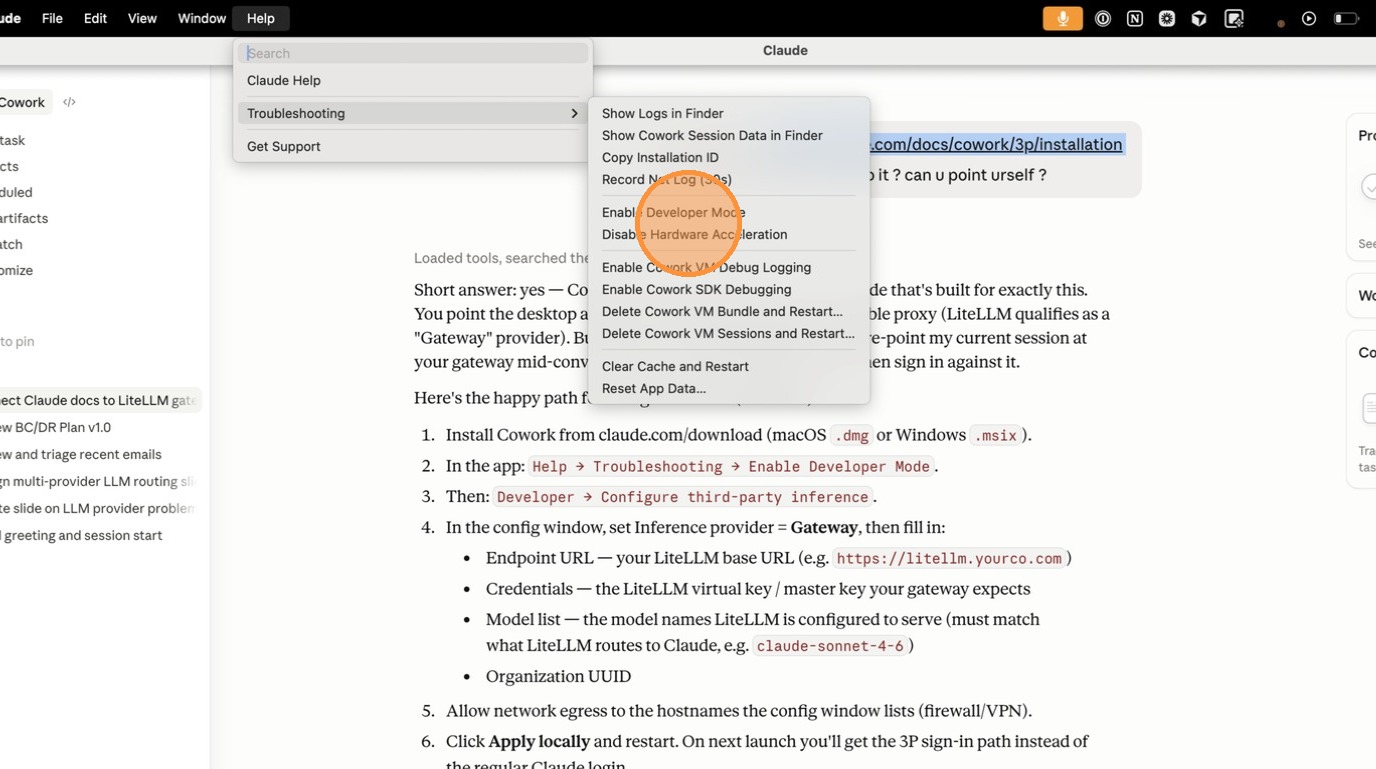
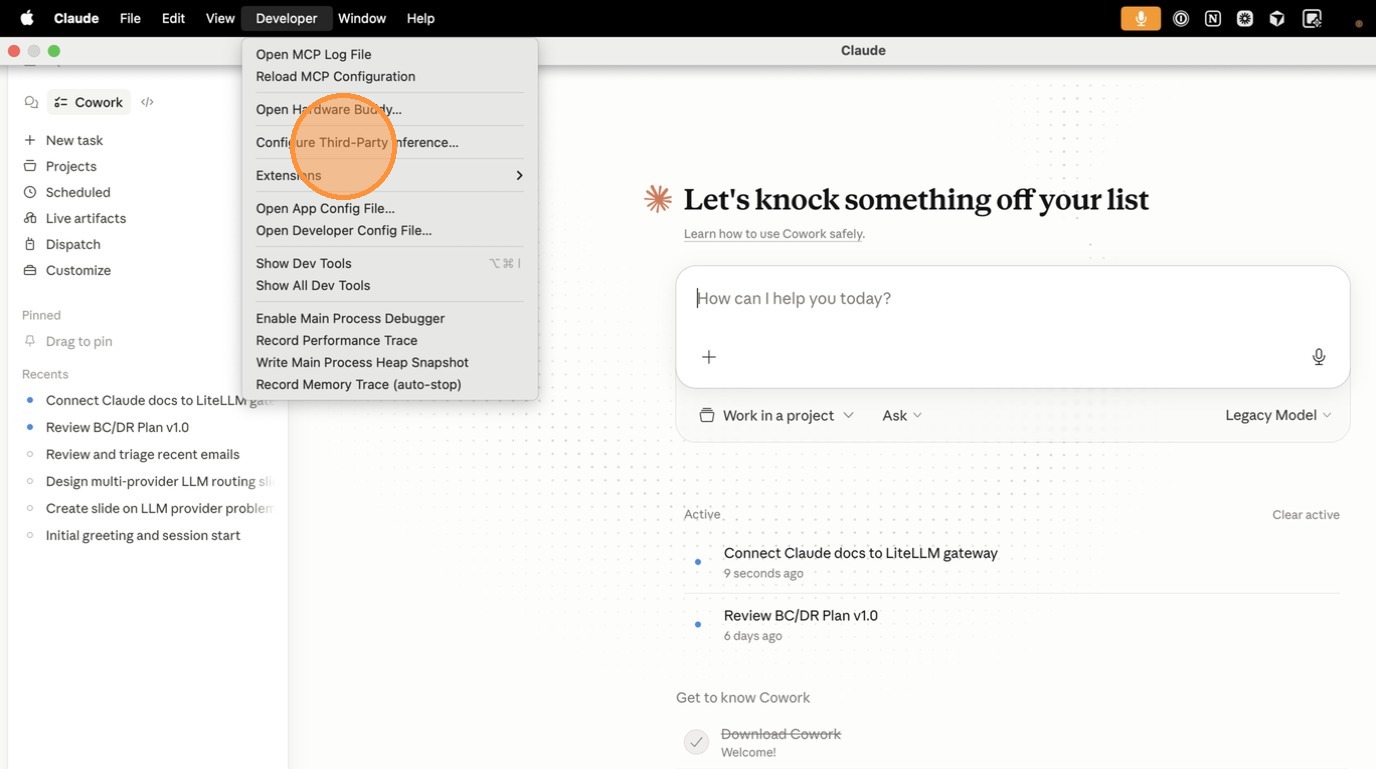
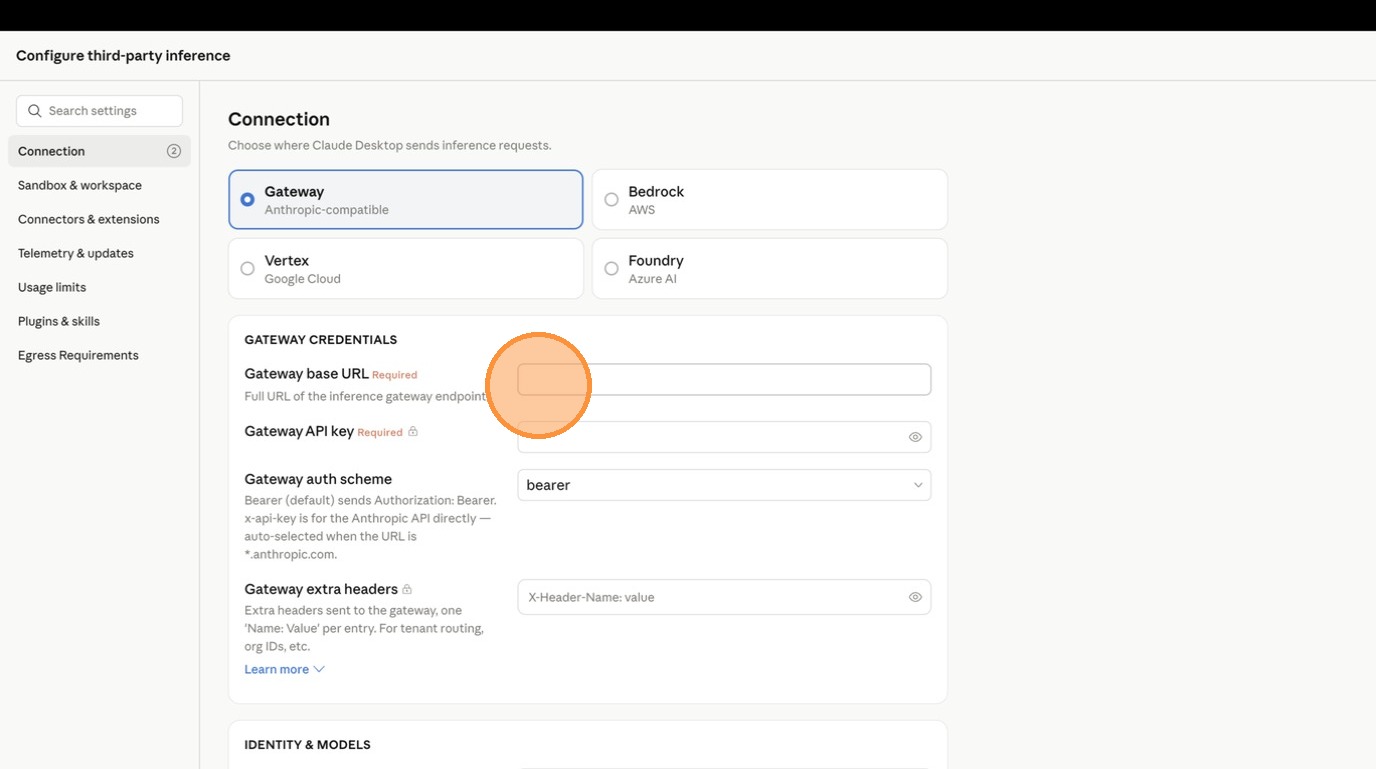
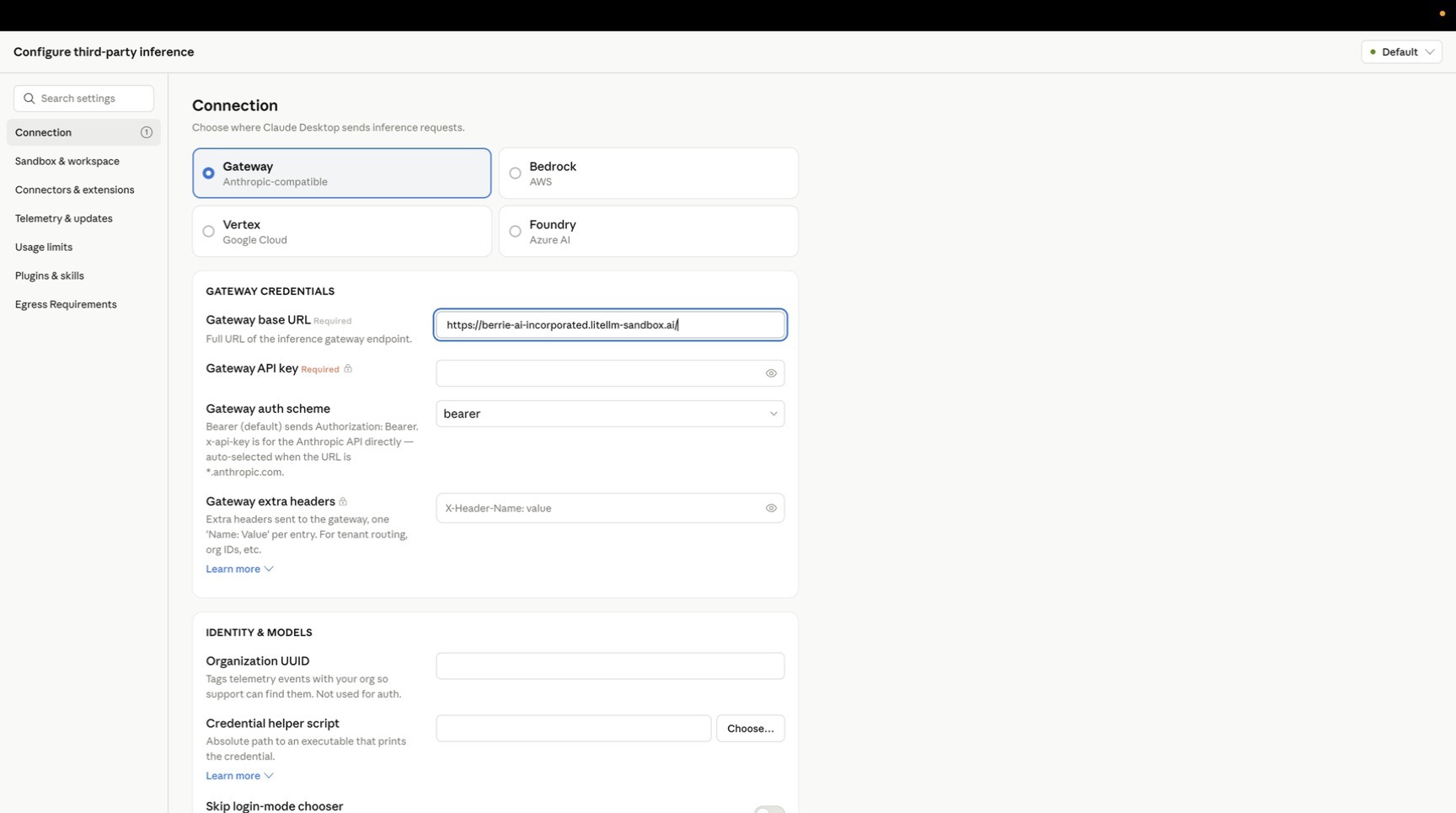
開啟設定視窗:Help > Troubleshooting > Enable Developer Mode,然後 Developer > Configure Third-Party Inference…。在 Connection 區段中,將 Inference provider 設為 Gateway,將 Gateway base URL 設為您的 proxy URL,並將 Credential kind 設為 Interactive sign-in,這會隱藏 API key 欄位並顯示 Gateway SSO IdP (OIDC):輸入步驟 1 中的 Client ID 與 Issuer URL,Scopes 保持空白以使用預設 openid profile email offline_access(Cognito 除外:請明確將其設為 openid profile email,因為 Cognito 沒有 offline_access scope,且在請求該 scope 時會以 invalid_scope 使登入失敗;Cognito 無論如何都會發出 refresh token),並為 Okta 與 Cognito 填入 Redirect port(53180)。Apply Changes 會將設定寫入此裝置,這就足以先試用;Export 會產生供叢集使用的受管理設定(請參閱 向叢集逐步部署)。
匯出的金鑰,在 macOS .mobileconfig 載荷中:
<key>inferenceProvider</key>
<string>gateway</string>
<key>inferenceGatewayBaseUrl</key>
<string>https://your-litellm-proxy.com</string>
<key>inferenceCredentialKind</key>
<string>interactive</string>
<key>inferenceGatewayOidc</key>
<string>{"issuer":"https://login.microsoftonline.com/YOUR_TENANT_ID/v2.0","clientId":"YOUR_CLIENT_ID"}</string>
對於 Okta,JSON 為 {"issuer":"https://YOUR_ORG.okta.com","clientId":"YOUR_CLIENT_ID","redirectPort":53180};對於 Cognito,則是 {"issuer":"https://cognito-idp.REGION.amazonaws.com/USER_POOL_ID","clientId":"YOUR_CLIENT_ID","redirectPort":53180,"scopes":"openid profile email"}。inferenceGatewayOidc 是一個值為 JSON 字串的單一金鑰(Windows 上為 REG_SZ,Linux 的 managed-settings.json 中則是原生物件);像 inferenceGatewayOidc.clientId 這類帶點號的金鑰永遠不會被讀取。將 bearerTokenType 保持為其預設 id_token,這也是 issuers 項目會驗證的內容;Google Workspace 需要在那裡使用 access_token,因為它在重新整理時不會發出新的 ID token,否則會每小時再次提示使用者登入。
同一份 JSON 也接受 redirectHost: "localhost",這會將回呼移至 http://localhost:PORT/callback,適用於註冊的 redirect URI 使用 localhost 的身分提供者。在 Entra 上,inferenceGatewayOidcAuthFlow: broker 會透過作業系統的身分中介者登入(Windows 上的 Web Account Manager、macOS 上的 Company Portal),而不是透過瀏覽器,這可滿足要求受管理裝置的 Conditional Access 原則;應用程式註冊接著也需要在同一平台下加入中介者 redirect URI ms-appx-web://Microsoft.AAD.BrokerPlugin/YOUR_CLIENT_ID 與 msauth.com.anthropic.claudefordesktop://auth,而 Linux 沒有中介者。
Claude Desktop 2.7032.0 重新命名了這些金鑰:以 inferenceCredentialKind: external-idp 搭配 inferenceIdpOidc 中的 JSON,以及用 inferenceIdpAuthFlow 取代 inferenceGatewayOidcAuthFlow。上述金鑰在未設定結束日期時仍可繼續運作,而較新的版本會將它們讀為 external-idp,因此請一直保留,直到叢集中的每台裝置都執行 2.7032.0 或更新版本;應用程式內視窗仍將此選項標示為 Interactive sign-in。從舊設定遺留下來、設定了 inferenceGatewayAuthScheme: sso 的設定檔,必須在 2026 年 10 月 7 日之前將其改為 inferenceCredentialKind,之後應用程式會將該值回報為無效,且在沒有其他 credential 金鑰存在時,會以沒有 credential 的狀態啟動 gateway 連線。
4. 驗證
下一次啟動時,使用者會看到 Sign in to your organization,透過瀏覽器登入,並回到應用程式,模型選擇器已由您的 proxy 填入。在 LiteLLM UI 中,Logs 會顯示每個請求與使用者 id 的對應,且 Internal Users 會顯示已 upsert 的使用者與費用。也可以使用任何您提供給該 client id 的 ID token,從 shell 中測試相同端點:
curl https://your-litellm-proxy.com/v1/models \
  -H "Authorization: Bearer $ID_TOKEN" -H "anthropic-version: 2023-06-01"

curl -N https://your-litellm-proxy.com/v1/messages \
  -H "Authorization: Bearer $ID_TOKEN" -H "anthropic-version: 2023-06-01" -H "content-type: application/json" \
  -d '{"model":"claude-sonnet-5","max_tokens":64,"stream":true,"messages":[{"role":"user","content":"hello"}]}'
第一個會回傳供模型選擇器建立所需的 Anthropic 形狀模型清單;第二個會串流回覆。401 搭配 Audience doesn't match 代表該 token 是發給與 audience 中不同的 client id;Missing JWT Public Key URL from environment. 代表該 token 的 iss 與任何 issuers 項目都不相符;Token Expired 是應用程式透過重新整理 token 自行解析的狀態,或者在重新整理失敗時提示 Sign in again。
選項 B:靜態虛擬金鑰
虛擬金鑰 是概念驗證、共享工作站,或已經按團隊發放金鑰的 gateway 的正確憑證。相同受管理設定檔上的所有人共用該金鑰及其預算,而要輪換它就代表必須推送新的設定檔,這也是為什麼叢集最後會採用單一登入。
在 LiteLLM UI 中透過 Virtual Keys > + Create New Key 建立該金鑰,將其範圍限定為具有 max_budget 的 Claude 模型,然後複製它。在 Claude Desktop 中,於 Help > Troubleshooting 下啟用 Developer Mode,開啟 Developer > Configure Third-Party Inference…,將 Inference provider 設為 Gateway,輸入 Gateway base URL 與該金鑰作為 Gateway API key,將 Credential kind 保持為 Static API key,將 Gateway auth scheme 保持為 Bearer(LiteLLM 也接受 x-api-key),然後點擊 Apply Changes。
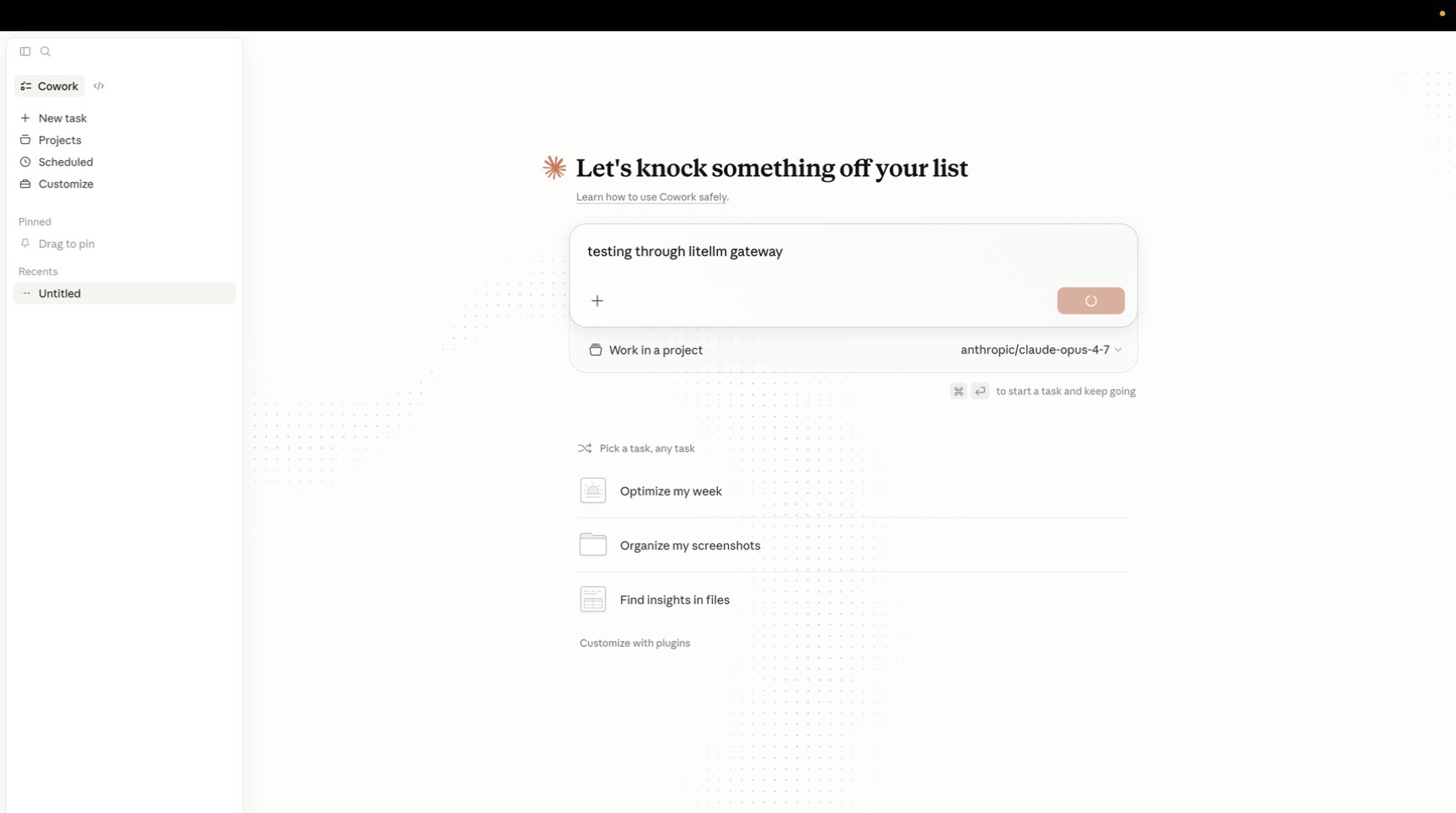
匯出的格式為 inferenceProvider: gateway、inferenceGatewayBaseUrl 與 inferenceGatewayApiKey,只有在您選擇該 scheme 時才會有 inferenceGatewayAuthScheme: x-api-key。之後請求會在 Logs 與 Usage 下顯示為該金鑰。
選擇器中的模型
Claude Desktop 會根據 GET /v1/models 建立選擇器,並只保留以 claude 或 anthropic 開頭的 id(不區分大小寫),因此您在 model_list 中的 model_name 值才是關鍵,而不是其背後的上游 id:來自 Bedrock 或 Vertex AI 的 claude-sonnet-5 可以通過,smart-router 不行。LiteLLM 不會回傳可讓不透明別名通過篩選器的 anthropic_family_tier 欄位,因此要嘛把 claude 放進名稱裡,要嘛在 inferenceModels 中列出模型;這會用您提供的項目精確取代探索(第一個為預設值)。LiteLLM 在每個模型上回傳的是 display_name,其值為 model_name,除非部署設定了 model_info.display_name,以及來自模型資訊的 max_input_tokens;該應用程式會將探索到的模型中 max_input_tokens 為 1,000,000 或以上者視為支援 1M,因此 claude-sonnet-5 與 claude-opus-5 會僅憑探索就取得其 1M 選擇器項目。手寫的 inferenceModels 清單如下:
[
  {"name": "claude-sonnet-5", "supports1m": true},
  {"name": "claude-opus-5", "labelOverride": "Opus 5 via LiteLLM"},
  {"name": "claude-haiku-4-5"}
]
supports1m 會為該模型新增第二個、1M-context 的選擇器項目(字串簡寫 "claude-sonnet-5[1m]" 也是同義);僅在與您代理伺服器回傳的 id 完全相符的 name 上設定,且只用於接受 1M-token 請求的部署,並加入 prefer1m: true 以使 1M 項目成為預設選取。anthropicFamilyTier(sonnet、opus、haiku、fable、mythos)搭配 isFamilyDefault: true,會告訴應用程式裸 tier 別名對應到哪個項目。使用 Claude for Teams 或 Enterprise 的組織,也需要將每個閘道模型名稱加入他們的 availableModels allowlist,否則會顯示為灰色;Claude Code 與 Claude Desktop 搭配 Auto Router 說明了 allowlist 規則,以及如何將 auto router 放在選擇器可接受的名稱後方。LiteLLM 後方的非 Claude 模型在其 model_name 包含 claude 後也以相同方式運作;將 drop_params: true 加到這些項目中,讓 Cowork 與 Code 工作階段送出的 Anthropic 特定請求欄位在提供者沒有對應欄位時被丟棄,而不是讓請求失敗。
透過 LiteLLM MCP 閘道的 MCP 伺服器
Claude Desktop 上的受管理 MCP 伺服器是 managedMcpServers 項目,將它們指向 LiteLLM 的 MCP 閘道 而不是每個上游伺服器,能讓 MCP 流量納入相同的記錄、存取控制與身分驗證之下。LiteLLM 會將每個已設定的伺服器透過單一可串流 HTTP 端點 https://your-litellm-proxy.com/mcp 暴露,並使用相同的 bearer 憑證進行驗證;x-mcp-servers 標頭可將單一項目縮小到特定伺服器(每伺服器路徑 /mcp/<server_name> 也有相同效果),而工具則顯示為 <server>-<tool>。
mcp_servers:
  deepwiki:
    url: https://mcp.deepwiki.com/mcp
    transport: http
  github:
    url: https://api.githubcopilot.com/mcp
    transport: http
    auth_type: bearer_token
    auth_value: os.environ/GITHUB_TOKEN
對伺服器的存取是經授權而非預設允許:已登入的使用者只會看到其團隊、金鑰或組織獲准使用的伺服器,其他伺服器則會直接從 tools/list 中消失。使用單一登入時,授權會落在 token 的群組映射到的團隊上,因此請以其 object_permission 建立該團隊並包含伺服器(相同呼叫也會設定該群組獲得的模型與預算):
curl -X POST https://your-litellm-proxy.com/team/new \
  -H "Authorization: Bearer $LITELLM_MASTER_KEY" -H "content-type: application/json" \
  -d '{"team_id": "GROUP_ID_FROM_THE_TOKEN", "team_alias": "Claude Desktop users",
       "models": ["claude-sonnet-5", "claude-opus-5", "claude-haiku-4-5"], "max_budget": 500,
       "object_permission": {"mcp_servers": ["deepwiki", "github"]}}'
低風險伺服器也可以改以 allow_all_keys: true 向所有人開放(Public MCP servers),而 MCP 存取控制 說明了存取群組與逐工具權限。在 Claude Desktop 端,靜態虛擬金鑰會放在項目的標頭中:
[
  {
    "name": "litellm",
    "transport": "http",
    "url": "https://your-litellm-proxy.com/mcp",
    "headers": {"Authorization": "Bearer sk-...", "x-mcp-servers": "deepwiki,github"}
  }
]
靜態標頭無法攜帶已登入使用者自己的 token,因此單一登入的叢集會改用 headersHelper:一個 Claude Desktop 執行的可執行檔,會將標頭輸出為扁平 JSON 物件,並依照 headersHelperTtlSec 排程重新執行,且在伺服器回應 401 或 403 時再次執行(Claude Desktop 1.46388.1 或更新版本)。取得相同應用程式註冊之 ID token 的輔助程式,可讓聊天與 MCP 支出落在同一個 LiteLLM 使用者上。toolPolicy 是工具名稱到 allow、ask 或 blocked 的對應,可為每個工具設定確認政策。需要使用者自身上游登入(GitHub、Atlassian 等)的伺服器,會透過 LiteLLM 的 MCP OAuth passthrough 或 gateway-hosted DCR bridge 在每伺服器 URL https://your-litellm-proxy.com/mcp/<server_name> 上接受 "oauth": true;只有當伺服器以 HTTP 401 回應未驗證請求時,Claude Desktop 才會在迴送回呼 http://127.0.0.1:53280/callback 上啟動該登入流程。標記為 available_on_public_internet: false 的伺服器會對私有範圍之外的呼叫者隱藏(或您設定的 mcp_internal_ip_ranges),因此位於公用網際網路上的筆記型電腦只會看到其餘部分(公用網際網路上的 MCP 伺服器)。
Claude Desktop 內建的連接器("server": "microsoft365"、"github"、"websearch")在應用程式內針對那些供應商自己的 API 執行,並且從不經過 LiteLLM;只有 url 項目會經過。要讓 GitHub 或 Microsoft 365 流量納入 LiteLLM,請將供應商的 MCP 伺服器設定為代理伺服器上的 mcp_servers 項目,並將 url 項目指向它。
在閘道部署上,Claude Desktop 會關閉 MCP 工具搜尋,因此每個伺服器的每個工具結構描述都會內嵌到每個請求中,而含有大量 MCP 工具的工作階段會每一兩輪就壓縮一次。toolSearchEnabled: true(Claude Desktop 1.21459.0 或更新版本)則改為按需載入結構描述;請求隨後會在 anthropic-beta 中攜帶 tool-search-tool-2025-10-19 值、延後的工具載入,以及 tool_reference 內容區塊,而 LiteLLM 會將這些轉送到位於 /v1/messages 的 Anthropic 部署。
逐步向一個叢集推出
設定視窗中的 Export 會將您套用的內容轉成您的 MDM 所預期的範本:.mobileconfig(macOS)、.reg 檔案或 ADMX(Windows),或 Intune OMA-URI JSON。受管理的組態會從 macOS 上的 /Library/Managed Preferences/<user>/com.anthropic.claudefordesktop.plist、Windows 上的 HKLM\SOFTWARE\Policies\Claude(或 HKCU),以及 Linux 上的 /etc/claude-desktop/managed-settings.json 讀取,而 Apply Changes 會寫入 ~/Library/Application Support/Claude-3p/configLibrary/、%LOCALAPPDATA%\Claude-3p\configLibrary\ 與 ~/.config/Claude-3p/configLibrary/。bootstrapUrl 讓裝置可從您自行託管的伺服器而非 MDM 設定檔取得相同組態;LiteLLM 目前不提供 bootstrap 端點。Anthropic 的 Enterprise Admin Console 處於 beta,是第三種路徑,無需執行設定檔或伺服器:Anthropic 代管組態,而每位使用者的應用程式在以工作電子郵件 Claude 帳號登入一次後,會下載其群組的設定。若裝置的 MDM 設定檔設定了更新金鑰以外的任何金鑰,則會忽略主控台。
在 LiteLLM 後方還有兩個金鑰很重要。inferenceCustomHeaders 是一個額外標頭的 JSON 物件,會在每次 inference 與 discovery 請求中送出(僅路由與租戶標頭,絕不包含憑證),用於讓設定檔在每個請求上標記 x-litellm-tags,而 tag budgets、tag routing 以及 Usage 頁面都會依此分組;{"x-litellm-tags": "claude-desktop,finance"} 可讓某個部門擁有自己的預算,而不需要獨立的金鑰或團隊。inferenceStreamIdleTimeoutSec(300 到 1800)會延長 Cowork 或 Code 工作階段在串流回應中等待模型輸出的時間,但只有在 LiteLLM 於上游模型靜默時寫入 SSE keep-alive ping 的情況下才生效,而這預設是關閉的;在 litellm_settings 下的 sse_keepalive_ping_interval_seconds: 15 會為每個部署啟用它(keepalive pings)。若回應上沒有任何內容,仍會在預設時間逾時。
將使用者的 claude.ai 聊天移至
從個人 Claude 訂閱切換到閘道的使用者,一開始會看到空白側邊欄。標準版 Claude Desktop 會將 claude.ai 上該帳戶的聊天保留在那裡,而使用第三方推理的 Claude Desktop 不會有 Anthropic 帳戶,並會將 Chat 與 Cowork 歷史記錄保留在裝置上,macOS 上位於 ~/Library/Application Support/Claude-3p/。切換不會刪除任何內容:舊聊天仍可在 claude.ai 讀取,而且兩種模式可在同一台機器上並存,因此登入畫面上的 Anthropic 選項會把標準應用程式帶回來,而不會碰到閘道資料。它們只是不會自動出現在閘道應用程式中。
Anthropic 提供了專為這種轉換而設計的匯入功能,預設為關閉。將 claudeAiImport 加到受管理的設定中(MDM 設定檔或 bootstrap 回應;Anthropic 的參考文件指出會從此處讀取該鍵),並且如果 Chat 尚未啟用,則將 chatTabEnabled,因為在第三方推理上,Chat 介面預設為關閉。claudeAiImport 是一個值為 JSON 物件的鍵,其格式與上方的 inferenceGatewayOidc 相同(在 .mobileconfig 或 .reg 中為 JSON 字串,在 bootstrap 回應或 managed-settings.json 中為原生物件),適用於 Claude Desktop 1.10628.0 或更新版本:
{
  "chatTabEnabled": true,
  "claudeAiImport": {"enabled": true, "exportEnabled": true, "bannerBehavior": "show"}
}
bannerBehavior 正是讓這個轉換可自助完成的原因:show 會在新聊天或任務頂端放入匯入提示,因此不需要知道設定頁面存在,而 detect 只會在保留先前 Claude 安裝工作階段的機器上顯示它。若不設定,應用程式就不會顯示提示。
接著每位使用者打開 設定 > 匯入與匯出,按一下 匯入…,並在精靈中登入 claude.ai;擷取匯出 會抓取其聊天與專案,並將它們複製到閘道應用程式。若使用者不想在應用程式中登入,可從 claude.ai 的 設定 > 隱私權 > 匯出資料 下載 zip(電子郵件連結有效 24 小時),再用 選擇檔案… 選取;相同的精靈也會接手先前標準安裝留在機器上的 Cowork 與 Code 工作階段。匯入的聊天會從側邊欄開啟,並在 信任並繼續 後透過您的 proxy 繼續。匯入是一次性的複製,可重複執行而不會建立重複項目,附件和專案知識檔案永遠不會被帶過來(這是適用於兩種途徑的 claude.ai 政策),而 claude.ai Team 或 Enterprise 工作區的成員只有在擁有者於工作區的資料與隱私權設定中開啟 允許成員匯出自己的資料 後,才能匯出。exportEnabled 會在相同的設定頁面新增 匯出…,產生這台電腦的聊天與工作階段 zip,以便透過相同的精靈移到另一部裝置。Anthropic 的 匯入指南 有每個步驟的截圖。
快取提示
Cowork 與 Code 工作階段在每一輪都送出 cache_control 分界點,因此提供者會重複使用工具定義、系統提示與先前回合,而不是將它們重新計費為新輸入,LiteLLM 會在 /v1/messages 上轉送這些分界點。在工作階段的第一個請求之後,大多數回應上的 usage 應該顯示 cache_read_input_tokens 明顯大於零。每輪都為零表示分界點前方有某些內容在請求之間發生變化,通常是回呼或防護欄每次請求都重寫系統提示或工具清單,因此請檢查提供 Claude 模型之路由上執行了什麼。
使用量歸因
在單一登入下,每個請求都會歸因於由 token upsert 的 LiteLLM 使用者,以及歸因於對應到群組聲明的團隊,因此 使用量 會按人員與團隊拆分支出,而且預算會套用在兩個層級。使用靜態金鑰時,金鑰就是單位,而每個團隊或每個用途各自擁有一個 max_budget 是實務上最合適的粒度。無論哪種方式,來自 x-litellm-tags 的 inferenceCustomHeaders 都可新增第三個軸,例如部門或成本中心,而不會改變誰在驗證。
疑難排解
模型選擇器是空的,或連線測試通過但沒有出現 Claude 模型。 探索只保留包含 claude 或 anthropic 的 id;請重新命名 model_name,或設定 inferenceModels。早於 v1.98.0 的 LiteLLM 只會以 OpenAI 形狀回應 /v1/models,而應用程式無法解析;請升級,或設定 inferenceModels 以便應用程式略過探索。
登入成功且分頁關閉,但 GET /v1/models 回應 401。 proxy 在 enable_jwt_auth: true 下沒有 general_settings,因此 bearer token 落入虛擬金鑰驗證並在金鑰查找時失敗;登入看起來仍然正常,因為瀏覽器步驟只涉及身分提供者。較新的 LiteLLM 版本會在 401 內容中說明:「This key has the structure of a JWT, but JWT auth is not enabled on this proxy」。請加入步驟 2 的 JWT 設定。
瀏覽器停在身分提供者自己的錯誤頁面,並顯示 redirect_mismatch。 回呼未在用戶端註冊,或提供者精確比對連接埠,而 Claude Desktop 選了暫時性的連接埠。請以固定連接埠註冊 http://127.0.0.1:PORT/callback,並將該連接埠設為 Redirect port;Okta 和 Cognito 都是精確比對。
登入直接跳回 127.0.0.1,並顯示 error=invalid_request&error_description=invalid_scope(Cognito)。 請求要求了一個應用程式用戶端沒有的 scope。要嘛是 Scopes 留空,因此預設集合請求了 offline_access,而 Cognito 不支援它;要嘛是 OIDC scopes 尚未在應用程式用戶端的 Login pages 設定中啟用。將 Scopes 設為 openid profile email,並在應用程式用戶端上啟用這三個 scope。
每個請求都顯示 Authentication Error, Missing JWT Public Key URL from environment.。 token 的 iss 沒有對應到任何 issuers 項目(比較 token 中的 iss 聲明與 issuer 值;Entra token 在結尾帶有 /v2.0),而且沒有設定 JWT_PUBLIC_KEY_URL 備援。
啟動時 ValueError: Invalid arguments provided 命名 public_key_url 和 audience。 設定遵循了 Anthropic 的範例。請把那些值移到 issuers 項目中。
Authentication Error, Validation fails: Audience doesn't match。 該 token 是發給不同的 client id;audience 必須是 Claude Desktop 應用程式註冊的 client id,而 bearerTokenType 必須維持為 id_token,因為 access token 的 audience 就是它所請求的 API。
Token Expired,或使用者每小時都被要求登入。 重新整理需要 offline_access scope,而預設 scope 已包含它;在 scopes 模式下,自訂的 id_token 值必須明確列出它。Google Workspace 在 id_token 模式下無論如何都會每小時再次提示;請改用 bearerTokenType: access_token。
gateway SSO: server does not advertise device_authorization_endpoint。 應用程式無法讀取 inferenceGatewayOidc(或 inferenceIdpOidc),通常是因為它是以點狀鍵或無效 JSON 推送的。請從設定視窗重新匯出。
OIDC discovery failed (HTTP 404) 或 (HTTP 405)。 issuer 值是 metadata URI,而不是 issuer base URL;請移除 /.well-known/openid-configuration 後綴。
瀏覽器顯示 Connected,但應用程式回報 Token exchange failed (HTTP 401)。 身分提供者註冊是預期有 secret 的 confidential(Web)用戶端。請改註冊 Native application(Okta)、Mobile and desktop applications platform(Entra)或 Mobile app client(Cognito);client type 一旦建立後就無法變更,而 Cognito client secret 一旦建立後也無法移除,因此請建立新的 client。
啟用 JWT auth 後,GET /v1/models 立刻變得無法連線或逾時,而這個 gateway 之前是即時回應。 第一個經驗證的請求會讓 proxy 從 jwks_url 取得簽章金鑰,而從 proxy 網路到身分提供者的對外連線受阻會讓該擷取停滯。從 proxy 容器內執行 curl -m 5 <jwks_url> 應該會回傳金鑰集合;如果它卡住了,請開放該對外連線。
LiteLLM MCP endpoint 上的 tools/list 變成空白。 已登入使用者在任何伺服器上都沒有授權:token 的 groups 不符合任何團隊,或該團隊的 object_permission 沒有列出任何 mcp_servers。請將伺服器加入團隊,或在伺服器上設定 allow_all_keys: true。
對非 Claude 模型的請求會以 400 失敗。 Cowork 和 Code 工作階段會傳送 Anthropic 專用欄位;請在該 model_list 項目上設定 drop_params: true。
1M 上下文視窗項目遺失。 使用探索時,LiteLLM 的模型資訊中該模型的 max_input_tokens 低於 1,000,000。使用 inferenceModels 時,supports1m 會位於其 name 與您的 proxy 傳回的 id 不完全相符的項目上。
從個人 Claude 訂閱轉到閘道的使用者看不到以前的聊天紀錄。 內容沒有被刪除;聊天紀錄仍保留在該帳戶的 claude.ai 上,而閘道應用程式會保留自己的本機歷史紀錄。請開啟 claudeAiImport,並請使用者執行 Settings > Import & export > Import…(將使用者的 claude.ai 聊天紀錄匯入)。
Settings > Import & export 顯示此部署未啟用匯入。 claudeAiImport 缺少於受管理的設定,或其 enabled 不是 true;裝置上的受管理設定檔會優先於本機套用的任何設定,因此該鍵必須存在於設定檔中。
相關內容
- JWT 驗證 適用於每個
litellm_jwtauth選項,包括角色對應與 JWT 到虛擬金鑰的對應 - 虛擬金鑰
- MCP 閘道、MCP 存取控制,以及 MCP OAuth passthrough
- 搭配 Claude Code 與 Claude Desktop 的自動路由器
- 搭配 LiteLLM 的 Claude Code
- Anthropic 的 閘道指南、組態參考、MCP 伺服器與擴充功能,以及 匯入指南,適用於第三方推論上的 Claude Desktop