使用 LiteLLM 進行 Presidio PII 遮罩 - 完整教學
本教學將引導您使用 Microsoft Presidio 和 LiteLLM Gateway 設定 PII(Personally Identifiable Information,個人可識別資訊)遮罩。完成本教學後,您將具備可直接上線的設定,可自動偵測並遮罩 LLM 請求中的敏感資訊。
您將學到什麼
- 部署用於 PII 偵測的 Presidio 容器
- 設定 LiteLLM 以自動遮罩敏感資料
- 以實際範例測試 PII 遮罩
- 監控並追蹤防護欄執行
- 設定進階功能,例如輸出解析與語言支援
為什麼要使用 PII 遮罩?
在使用 LLM 時,使用者可能會不小心分享以下敏感資訊:
- 信用卡號碼
- 電子郵件地址
- 電話號碼
- 社會安全號碼
- 醫療資訊(PHI)
- 個人姓名與地址
PII 遮罩會在這些資訊到達 LLM 之前自動偵測並遮蔽,保護使用者隱私,並協助您遵循 GDPR、HIPAA 和 CCPA 等法規。
先決條件
在開始本教學之前,請確認您已具備:
- 已在您的電腦上安裝 Docker
- 可用於測試的 LiteLLM API 金鑰或 OpenAI API 金鑰
- 對 YAML 設定的基本熟悉度
curl或類似的 HTTP 用戶端可供測試
第 1 部分:部署 Presidio 容器
Presidio 由兩個主要服務組成:
- Presidio Analyzer:偵測文字中的 PII
- Presidio Anonymizer:遮罩或隱去偵測到的 PII
步驟 1.1:使用 Docker 部署
為 Presidio 建立一個 docker-compose.yml 檔案:
version: '3.8'

services:
  presidio-analyzer:
    image: mcr.microsoft.com/presidio-analyzer:latest
    ports:
      - "5002:3000"
    environment:
      - GRPC_PORT=5001
    networks:
      - presidio-network

  presidio-anonymizer:
    image: mcr.microsoft.com/presidio-anonymizer:latest
    ports:
      - "5001:3000"
    networks:
      - presidio-network

networks:
  presidio-network:
    driver: bridge
步驟 1.2:啟動容器
docker-compose up -d
步驟 1.3:驗證 Presidio 是否正在執行
測試 analyzer 端點:
curl -X POST http://localhost:5002/analyze \
  -H "Content-Type: application/json" \
  -d '{
    "text": "My email is john.doe@example.com",
    "language": "en"
  }'
您應該會看到類似以下的回應:
[
  {
    "entity_type": "EMAIL_ADDRESS",
    "start": 12,
    "end": 33,
    "score": 1.0
  }
]
✅ 檢查點:您的 Presidio 容器現在已在執行中,且已可使用!
第 2 部分:設定 LiteLLM Gateway
現在讓我們將 LiteLLM 設定為使用 Presidio 來自動進行 PII 遮罩。
步驟 2.1:建立 LiteLLM 設定
建立一個 config.yaml 檔案:
model_list:
  - model_name: gpt-5.6-luna
    litellm_params:
      model: openai/gpt-5.6-luna
      api_key: os.environ/OPENAI_API_KEY

guardrails:
  - guardrail_name: "presidio-pii-guard"
    litellm_params:
      guardrail: presidio
      mode: "pre_call"  # Run before LLM call
      presidio_score_thresholds:  # optional confidence score thresholds for detections
        CREDIT_CARD: 0.8
        EMAIL_ADDRESS: 0.6
      pii_entities_config:
        CREDIT_CARD: "MASK"
        EMAIL_ADDRESS: "MASK"
        PHONE_NUMBER: "MASK"
        PERSON: "MASK"
        US_SSN: "MASK"
步驟 2.2:設定環境變數
export OPENAI_API_KEY="your-openai-key"
export PRESIDIO_ANALYZER_API_BASE="http://localhost:5002"
export PRESIDIO_ANONYMIZER_API_BASE="http://localhost:5001"
步驟 2.3:啟動 LiteLLM Gateway
litellm --config config.yaml --port 4000 --detailed_debug
您應該會看到指出已載入防護欄的輸出:
Loaded guardrails: ['presidio-pii-guard']
✅ 檢查點:LiteLLM Gateway 已啟動,且已啟用 PII 遮罩!
第 3 部分:測試 PII 遮罩
讓我們使用各種不同類型的敏感資料來測試 PII 遮罩。
測試 1:基本 PII 偵測
- 含 PII 的請求
- LLM 會收到什麼
- 回應
curl -X POST http://localhost:4000/chat/completions \
  -H "Content-Type: application/json" \
  -H "Authorization: Bearer $LITELLM_API_KEY" \
  -d '{
    "model": "gpt-5.6-luna",
    "messages": [
      {
        "role": "user",
        "content": "My name is John Smith, my email is john.smith@example.com, and my credit card is 4111-1111-1111-1111"
      }
    ],
    "guardrails": ["presidio-pii-guard"]
  }'
LLM 將收到已遮罩的版本:
My name is <PERSON>, my email is <EMAIL_ADDRESS>, and my credit card is <CREDIT_CARD>
{
  "id": "chatcmpl-123abc",
  "choices": [
    {
      "message": {
        "content": "I can see you've provided some information. However, I noticed some sensitive data placeholders. For security reasons, I recommend not sharing actual personal information like credit card numbers.",
        "role": "assistant"
      },
      "finish_reason": "stop"
    }
  ],
  "model": "gpt-5.6-luna"
}
測試 2:醫療資訊(PHI)
curl -X POST http://localhost:4000/chat/completions \
  -H "Content-Type: application/json" \
  -H "Authorization: Bearer $LITELLM_API_KEY" \
  -d '{
    "model": "gpt-5.6-luna",
    "messages": [
      {
        "role": "user",
        "content": "Patient Jane Doe, DOB 01/15/1980, MRN 123456, presents with symptoms of fever."
      }
    ],
    "guardrails": ["presidio-pii-guard"]
  }'
病患姓名與病歷號碼將會自動遮罩。
測試 3:沒有 PII(一般請求)
curl -X POST http://localhost:4000/chat/completions \
  -H "Content-Type: application/json" \
  -H "Authorization: Bearer $LITELLM_API_KEY" \
  -d '{
    "model": "gpt-5.6-luna",
    "messages": [
      {
        "role": "user",
        "content": "What is the capital of France?"
      }
    ],
    "guardrails": ["presidio-pii-guard"]
  }'
這個請求會原樣通過,因為未偵測到 PII。
✅ 檢查點:您已成功測試 PII 遮罩!
第 4 部分:進階設定
封鎖敏感實體
除了遮罩之外,您也可以完全封鎖包含特定 PII 類型的請求:
guardrails:
  - guardrail_name: "presidio-block-guard"
    litellm_params:
      guardrail: presidio
      mode: "pre_call"
      pii_entities_config:
        US_SSN: "BLOCK"  # Block any request with SSN
        CREDIT_CARD: "BLOCK"  # Block credit card numbers
        MEDICAL_LICENSE: "BLOCK"
測試封鎖行為:
curl -X POST http://localhost:4000/chat/completions \
  -H "Content-Type: application/json" \
  -H "Authorization: Bearer $LITELLM_API_KEY" \
  -d '{
    "model": "gpt-5.6-luna",
    "messages": [
      {"role": "user", "content": "My SSN is 123-45-6789"}
    ],
    "guardrails": ["presidio-block-guard"]
  }'
預期回應:
{
  "error": {
    "message": "Blocked PII entity detected: US_SSN by Guardrail: presidio-block-guard."
  }
}
輸出解析(解除遮罩)
啟用輸出解析後,會自動將 LLM 回應中的遮罩標記替換回原始值:
guardrails:
  - guardrail_name: "presidio-output-parse"
    litellm_params:
      guardrail: presidio
      mode: "pre_call"
      output_parse_pii: true  # Enable output parsing
      pii_entities_config:
        PERSON: "MASK"
        PHONE_NUMBER: "MASK"
運作方式:
- 使用者輸入: "Hello, my name is Jane Doe. My number is 555-1234"
- LLM 會收到: "Hello, my name is
<PERSON>. My number is<PHONE_NUMBER>" - LLM 回應: "Nice to meet you,
<PERSON>!" - 使用者收到: "Nice to meet you, Jane Doe!" ✨
多語言支援
為不同語言設定 PII 偵測:
guardrails:
  - guardrail_name: "presidio-spanish"
    litellm_params:
      guardrail: presidio
      mode: "pre_call"
      presidio_language: "es"  # Spanish
      pii_entities_config:
        CREDIT_CARD: "MASK"
        PERSON: "MASK"

  - guardrail_name: "presidio-german"
    litellm_params:
      guardrail: presidio
      mode: "pre_call"
      presidio_language: "de"  # German
      pii_entities_config:
        CREDIT_CARD: "MASK"
        PERSON: "MASK"
您也可以針對每個請求覆寫語言:
curl -X POST http://localhost:4000/chat/completions \
  -H "Content-Type: application/json" \
  -H "Authorization: Bearer $LITELLM_API_KEY" \
  -d '{
    "model": "gpt-5.6-luna",
    "messages": [
      {"role": "user", "content": "Mi tarjeta de crédito es 4111-1111-1111-1111"}
    ],
    "guardrails": ["presidio-spanish"],
    "guardrail_config": {"language": "fr"}
  }'
僅記錄模式
只將 PII 遮罩套用到記錄(不套用到實際的 LLM 請求):
guardrails:
  - guardrail_name: "presidio-logging"
    litellm_params:
      guardrail: presidio
      mode: "logging_only"  # Only mask in logs
      pii_entities_config:
        CREDIT_CARD: "MASK"
        EMAIL_ADDRESS: "MASK"
這在以下情況很有用:
- 您希望在正式環境請求中允許 PII
- 但需要符合記錄相關法規
- 與 Langfuse、Datadog 等整合
第 5 部分:監控與追蹤
在 LiteLLM UI 上查看防護欄執行
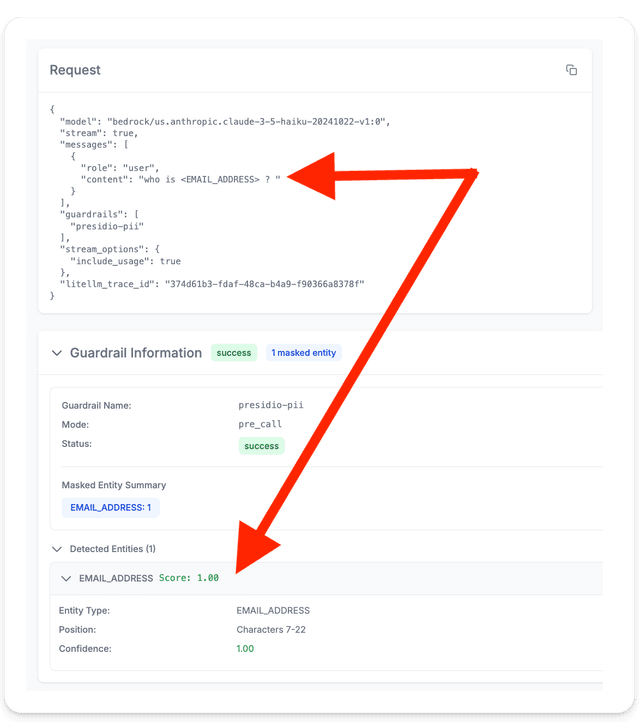
如果您使用 LiteLLM 管理 UI,您可以看到詳細的防護欄追蹤:
- 前往 Logs 頁面
- 點擊任何使用了防護欄的請求
- 查看詳細資訊:
- 偵測到哪些實體
- 每項偵測的信心分數
- 防護欄執行時間
- 原始內容與遮罩後內容
與 Langfuse 整合
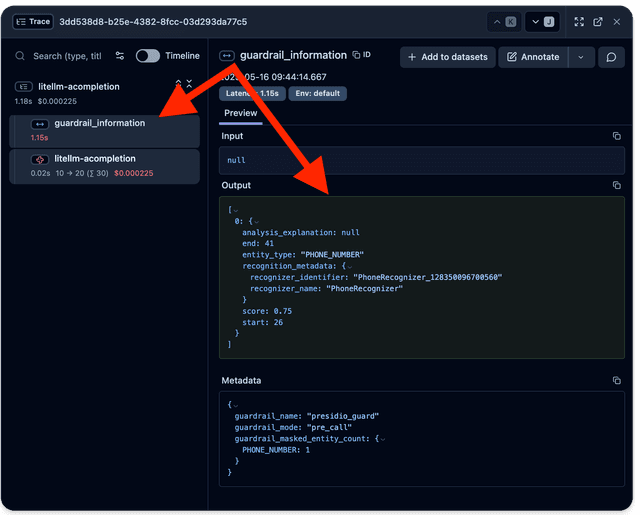
如果您將記錄送到 Langfuse,防護欄資訊會自動包含在內:
litellm_settings:
  success_callback: ["langfuse"]

environment_variables:
  LANGFUSE_PUBLIC_KEY: "your-public-key"
  LANGFUSE_SECRET_KEY: "your-secret-key"
以程式存取防護欄中繼資料
您可以在自訂回呼中存取防護欄中繼資料:
import litellm

def custom_callback(kwargs, result, **callback_kwargs):
    # Access guardrail metadata
    metadata = kwargs.get("metadata", {})
    guardrail_results = metadata.get("guardrails", {})

    print(f"Masked entities: {guardrail_results}")

litellm.callbacks = [custom_callback]
第 6 部分:正式環境最佳實務
1. 效能最佳化
對前置呼叫防護欄使用平行執行:
guardrails:
  - guardrail_name: "presidio-guard"
    litellm_params:
      guardrail: presidio
      mode: "during_call"  # Runs in parallel with LLM call
2. 依使用案例設定實體類型
醫療應用:
pii_entities_config:
  PERSON: "MASK"
  MEDICAL_LICENSE: "BLOCK"
  US_SSN: "BLOCK"
  PHONE_NUMBER: "MASK"
  EMAIL_ADDRESS: "MASK"
  DATE_TIME: "MASK"  # May contain appointment dates
金融應用:
pii_entities_config:
  CREDIT_CARD: "BLOCK"
  US_BANK_NUMBER: "BLOCK"
  US_SSN: "BLOCK"
  PHONE_NUMBER: "MASK"
  EMAIL_ADDRESS: "MASK"
  PERSON: "MASK"
客戶支援應用:
pii_entities_config:
  EMAIL_ADDRESS: "MASK"
  PHONE_NUMBER: "MASK"
  PERSON: "MASK"
  CREDIT_CARD: "BLOCK"  # Should never be shared
3. 高可用性設定
對於正式環境部署,請執行多個 Presidio 執行個體:
version: '3.8'

services:
  presidio-analyzer-1:
    image: mcr.microsoft.com/presidio-analyzer:latest
    ports:
      - "5002:3000"
    deploy:
      replicas: 3

  presidio-anonymizer-1:
    image: mcr.microsoft.com/presidio-anonymizer:latest
    ports:
      - "5001:3000"
    deploy:
      replicas: 3
使用負載平衡器(nginx、HAProxy)來分配請求。
4. 自訂實體識別
針對特定領域的 PII(例如內部員工 ID),建立自訂識別器:
建立 custom_recognizers.json:
[
  {
    "supported_language": "en",
    "supported_entity": "EMPLOYEE_ID",
    "patterns": [
      {
        "name": "employee_id_pattern",
        "regex": "EMP-[0-9]{6}",
        "score": 0.9
      }
    ]
  }
]
在 LiteLLM 中設定:
guardrails:
  - guardrail_name: "presidio-custom"
    litellm_params:
      guardrail: presidio
      mode: "pre_call"
      presidio_ad_hoc_recognizers: "./custom_recognizers.json"
      pii_entities_config:
        EMPLOYEE_ID: "MASK"
5. 測試策略
為您的 PII 遮罩建立測試案例:
import pytest
from litellm import completion

def test_pii_masking_credit_card():
    """Test that credit cards are properly masked"""
    response = completion(
        model="gpt-5.6-luna",
        messages=[{
            "role": "user",
            "content": "My card is 4111-1111-1111-1111"
        }],
        api_base="http://localhost:4000",
        metadata={
            "guardrails": ["presidio-pii-guard"]
        }
    )

    # Verify the card number was masked
    metadata = response.get("_hidden_params", {}).get("metadata", {})
    assert "CREDIT_CARD" in str(metadata.get("guardrails", {}))

def test_pii_masking_allows_normal_text():
    """Test that normal text passes through"""
    response = completion(
        model="gpt-5.6-luna",
        messages=[{
            "role": "user",
            "content": "What is the weather today?"
        }],
        api_base="http://localhost:4000",
        metadata={
            "guardrails": ["presidio-pii-guard"]
        }
    )

    assert response.choices[0].message.content is not None
第 7 部分:疑難排解
問題:防護欄失敗:來自 Presidio 的非 JSON 回應
症狀: 您收到一則錯誤,指出 expected application/json Content-Type but received text/html 或類似訊息。
根本原因: 您的 ingress controller 或反向代理可能正在將 /analyze 或 /anonymize POST 請求路由到健康狀態端點(例如 /health 或 /presidio-analyzer/health),而該端點回傳的是純文字而非 JSON。
修正方式: 請確保您的 PRESIDIO_ANALYZER_API_BASE 和 PRESIDIO_ANONYMIZER_API_BASE 已正確直接指向 Presidio API 端點,或確保您的 ingress 正確路由該路徑而不會移除路徑,並意外轉送到純文字的健康檢查端點。
驗證: 您可以使用 curl 驗證您的端點。它應該回傳 JSON 陣列,而不是 text/html:
curl -sv -X POST http://your-analyzer-endpoint/analyze \
  -H "Content-Type: application/json" \
  -d '{"text":"test","language":"en"}'
問題:Presidio 無法偵測 PII
檢查 1:語言設定
# Verify language is set correctly
curl -X POST http://localhost:5002/analyze \
  -H "Content-Type: application/json" \
  -d '{
    "text": "Meine E-Mail ist test@example.de",
    "language": "de"
  }'
檢查 2:實體類型
請確保您要找的實體類型已包含在您的設定中:
pii_entities_config:
  CREDIT_CARD: "MASK"
  # Add all entity types you need
問題:Presidio 容器無法啟動
檢查記錄:
docker-compose logs presidio-analyzer
docker-compose logs presidio-anonymizer
常見問題:
- 埠衝突(5001、5002 已被使用)
- 記憶體分配不足
- Docker 網路問題
問題:延遲過高
解決方案 1:使用 during_call 模式
mode: "during_call" # Runs in parallel
解決方案 2:擴充 Presidio 容器
deploy:
  replicas: 3
解決方案 3:啟用快取
litellm_settings:
  cache: true
  cache_params:
    type: "redis"
結論
恭喜!🎉 您已成功使用 Presidio 和 LiteLLM 設定 PII 遮罩。您現在擁有:
✅ 可用於正式環境的 PII 遮罩解決方案
✅ 自動偵測敏感資訊
✅ 多種設定選項(遮罩 vs. 封鎖)
✅ 監控與追蹤能力
✅ 多語言支援
✅ 正式環境部署的最佳實務
下一步
其他資源
需要協助嗎? 加入我們的 Discord 社群 或在 GitHub 上開啟 issue!
抑制誤判
Presidio 有時可能會觸發誤判偵測。範例來說,較短的英數字串可能會被錯誤標記為 US_DRIVER_LICENSE。
您可以使用 presidio_score_thresholds 或 presidio_entities_deny_list 來抑制這些誤判。
guardrails:
  - guardrail_name: presidio-pii
    litellm_params:
      guardrail: presidio
      mode: "pre_call"
      presidio_analyzer_api_base: "http://localhost:5002/"
      presidio_anonymizer_api_base: "http://localhost:5001/"

      # Use high score thresholds to reduce false positives
      presidio_score_thresholds:
        US_DRIVER_LICENSE: 0.85
        ALL: 0.5

      # Or exclude certain entity types entirely from detection
      presidio_entities_deny_list:
        - US_DRIVER_LICENSE